What matters,
brought into focus

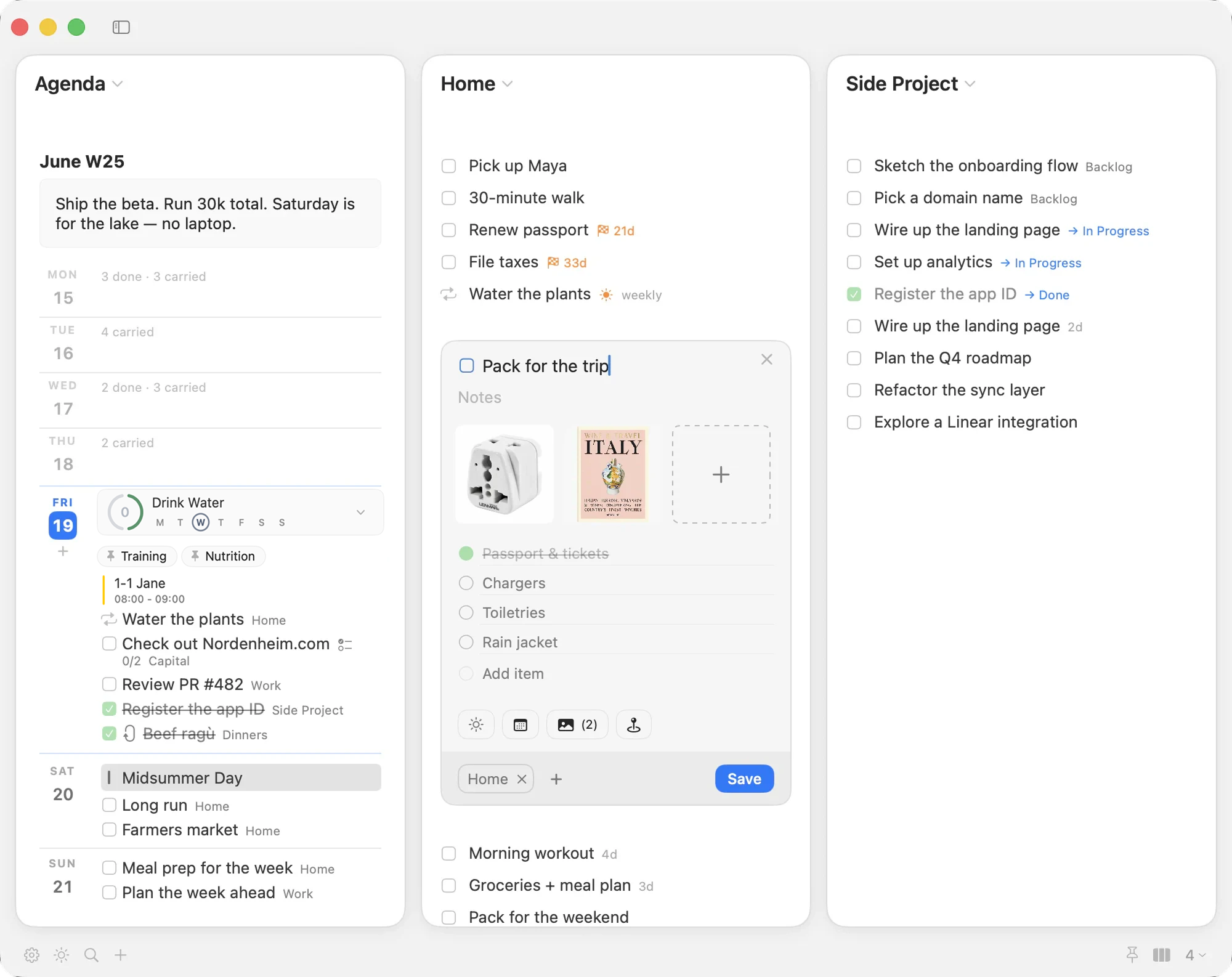
Plan deliberately from today to five years out, with rolling tasks, decisions, habits, focus nudges, and as many columns as your screen can hold.

WHAT'S DIFFERENT

Nine things Matters does that other task apps don't

Most productivity apps are slight variations on the same idea: a list, a date, a checkbox. Matters is built around a different theory of how a deliberate life gets organized — and the difference is structural, not a settings toggle.

  1. ROLLING TASKS

    The list that never empties — it just rotates

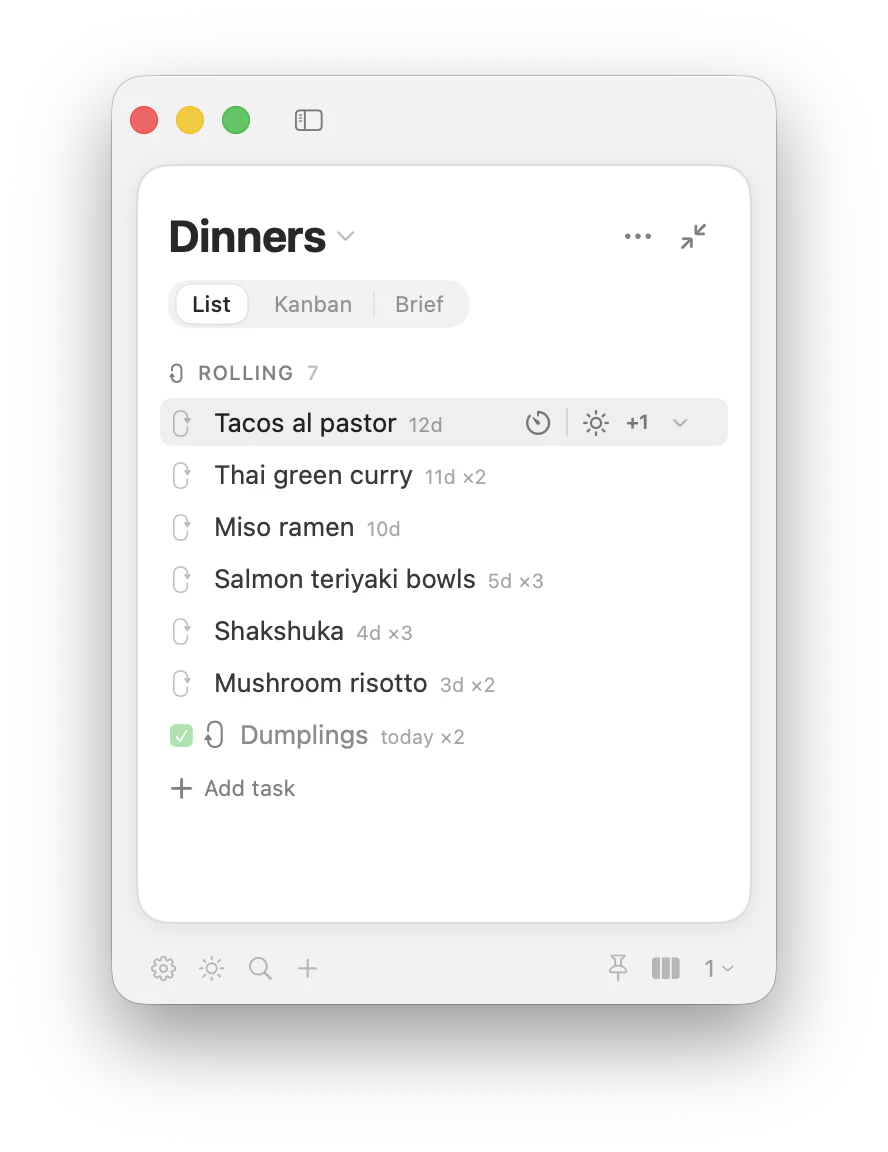
    Most apps treat a finished item as a thing to delete. A rolling task sinks to the bottom instead, and the thing it's been longest since rises. The list becomes a wheel that turns by itself. Perfect for any rotation that should never run out.

    • 14 dinners Cycle through the next two weeks — cook one, it sinks, the longest-ago meal rises.
    • Family activities A rotation of things to do with the kids — the one you've done least rises back up.
    • Workouts Push / pull / legs, on rotation — no manual reset.
    • Per task, not per list Mix rolling and one-off items freely on the same list.
    • A days-since chip Every rolling task wears one, so "it's been 12 days" is a fact, not a feeling.
    Dinners
    ListKanbanBrief
    ROLLING 7
    • Tacos al pastor6d
    • Thai green curry5d×2
    • Miso ramen4d
    • Salmon teriyaki bowls3d×3
    • Shakshuka2d×3
    • Mushroom risotto1d×2
    • Dumplingstoday×2
    Add task
  2. TASK TYPES

    Five kinds of task, because life has more than one

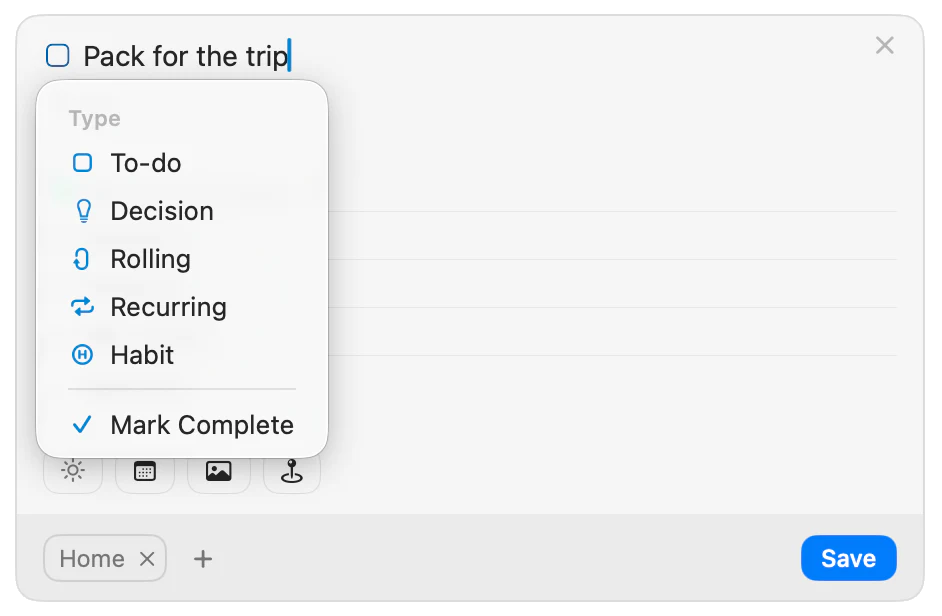
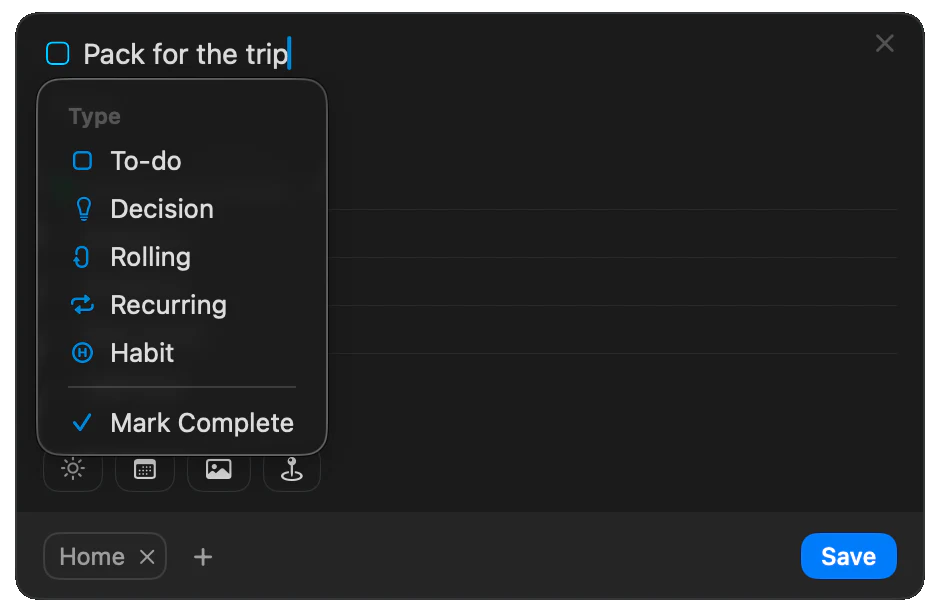
    A grocery run, a habit, a decision you keep circling — different shapes of work, each deserving its own behavior. Matters gives you five, switchable on the same list with a tap.

    • Standard Do it once, it's done.
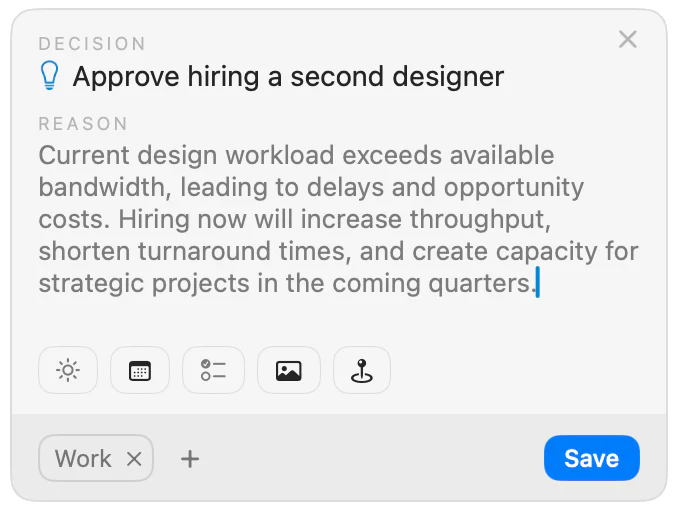
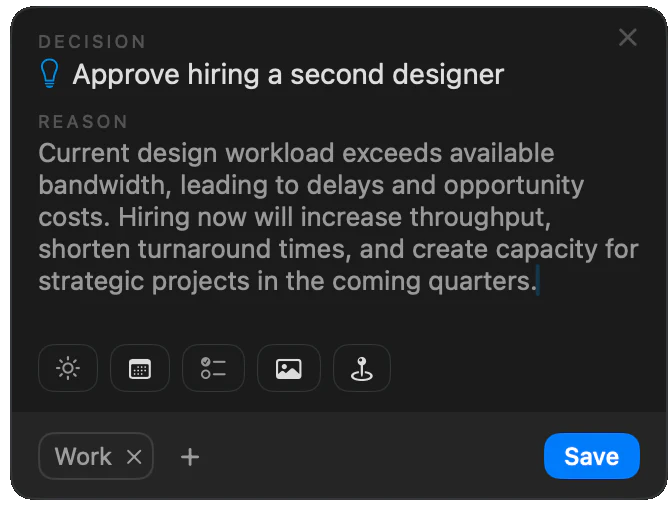
    • Decision Completing it asks what you chose and why; it stays Waiting until it's Locked.
    • Rolling Sinks when done, rises when it's been longest.
    • Recurring Daily, weekdays, weekends, weekly, biweekly, monthly, yearly.
    • Habit Daily or weekly targets, streaks, and inline check-offs in your day.

    Decisions get a log of their own. Filter your history to decisions only and read the year in choices — what you picked, and the reasoning you'd otherwise have lost.

  3. PLAN

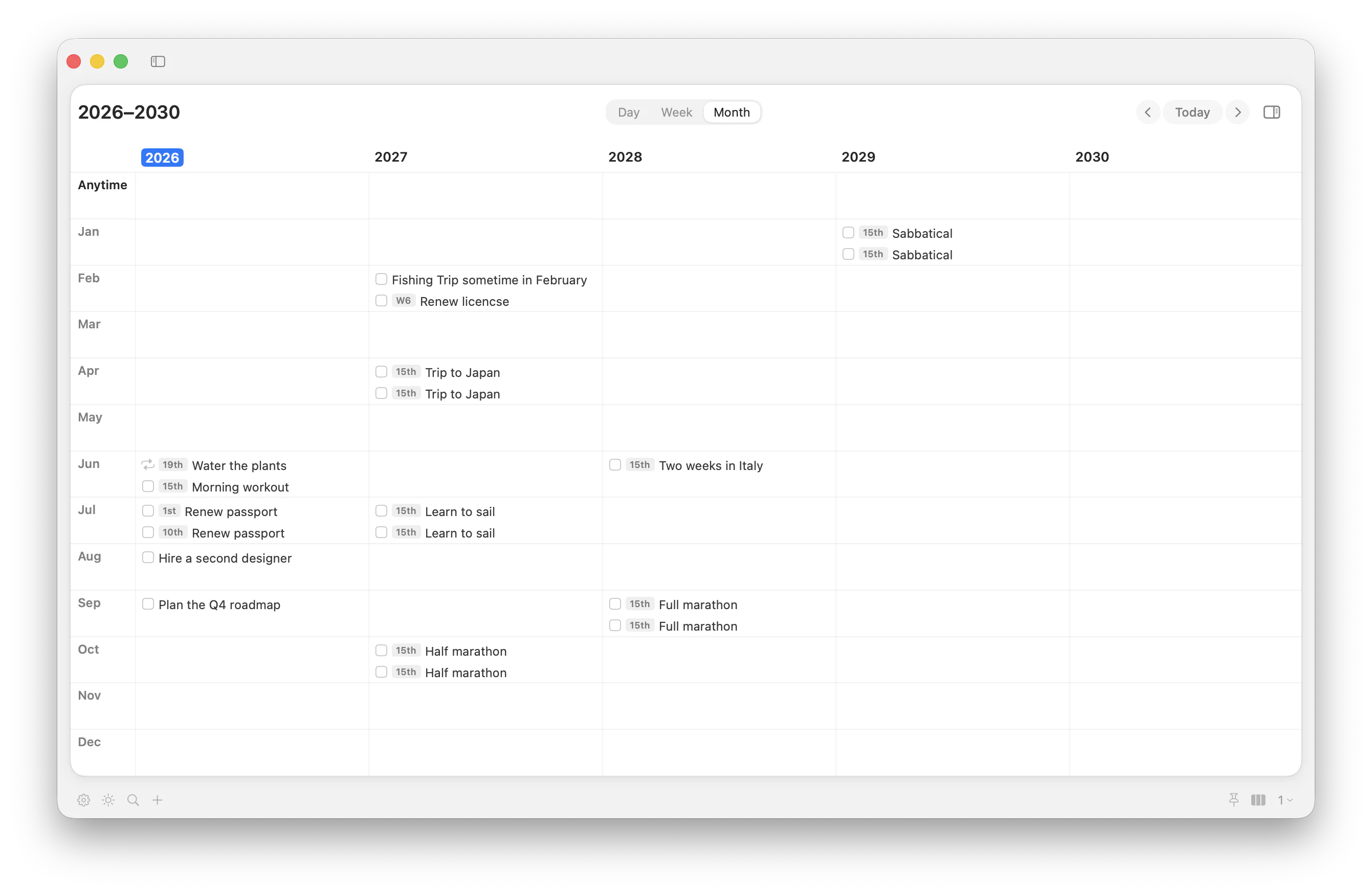
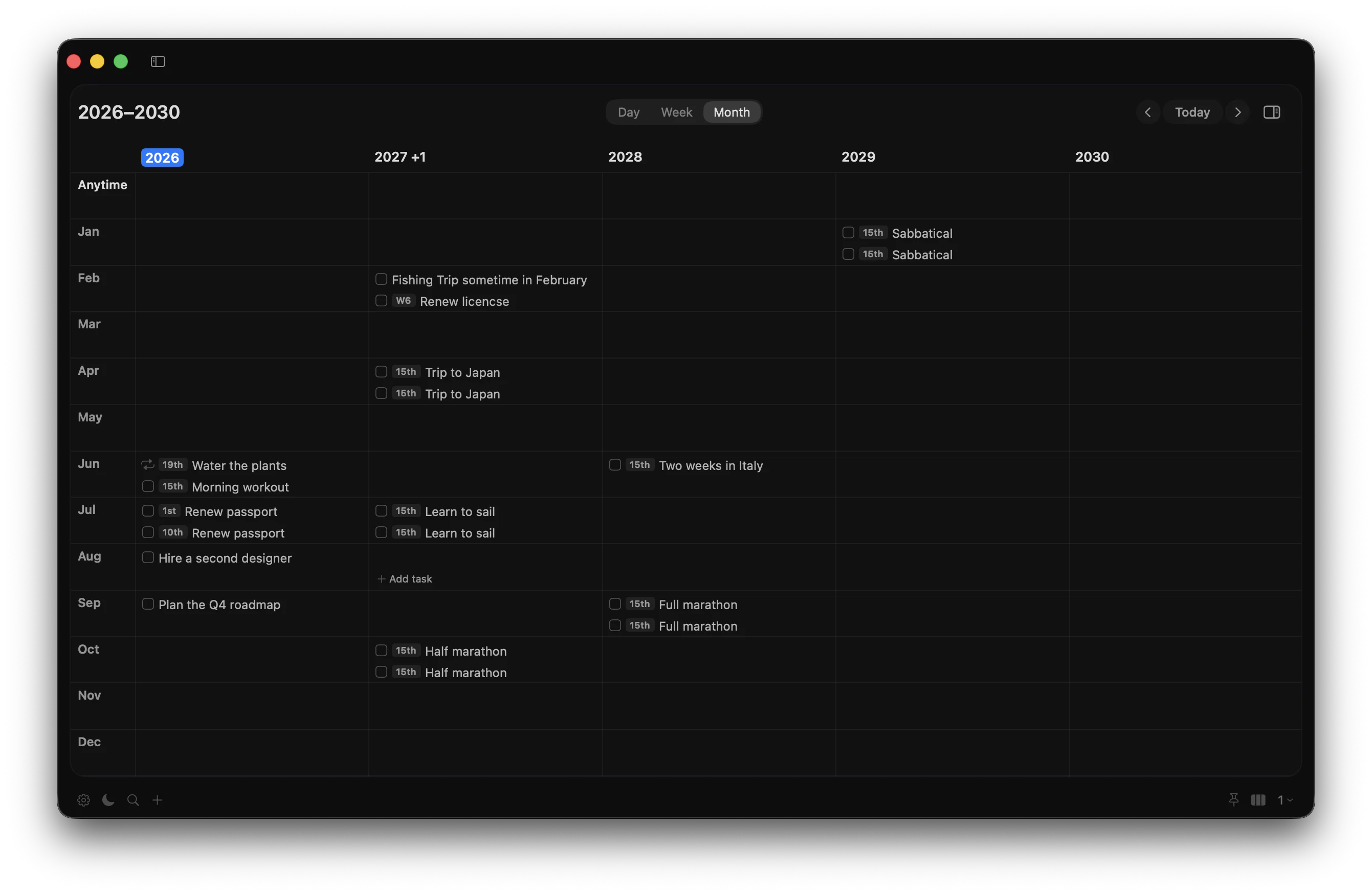
    Plan Tuesday. Plan 2029. Same view, different zoom.

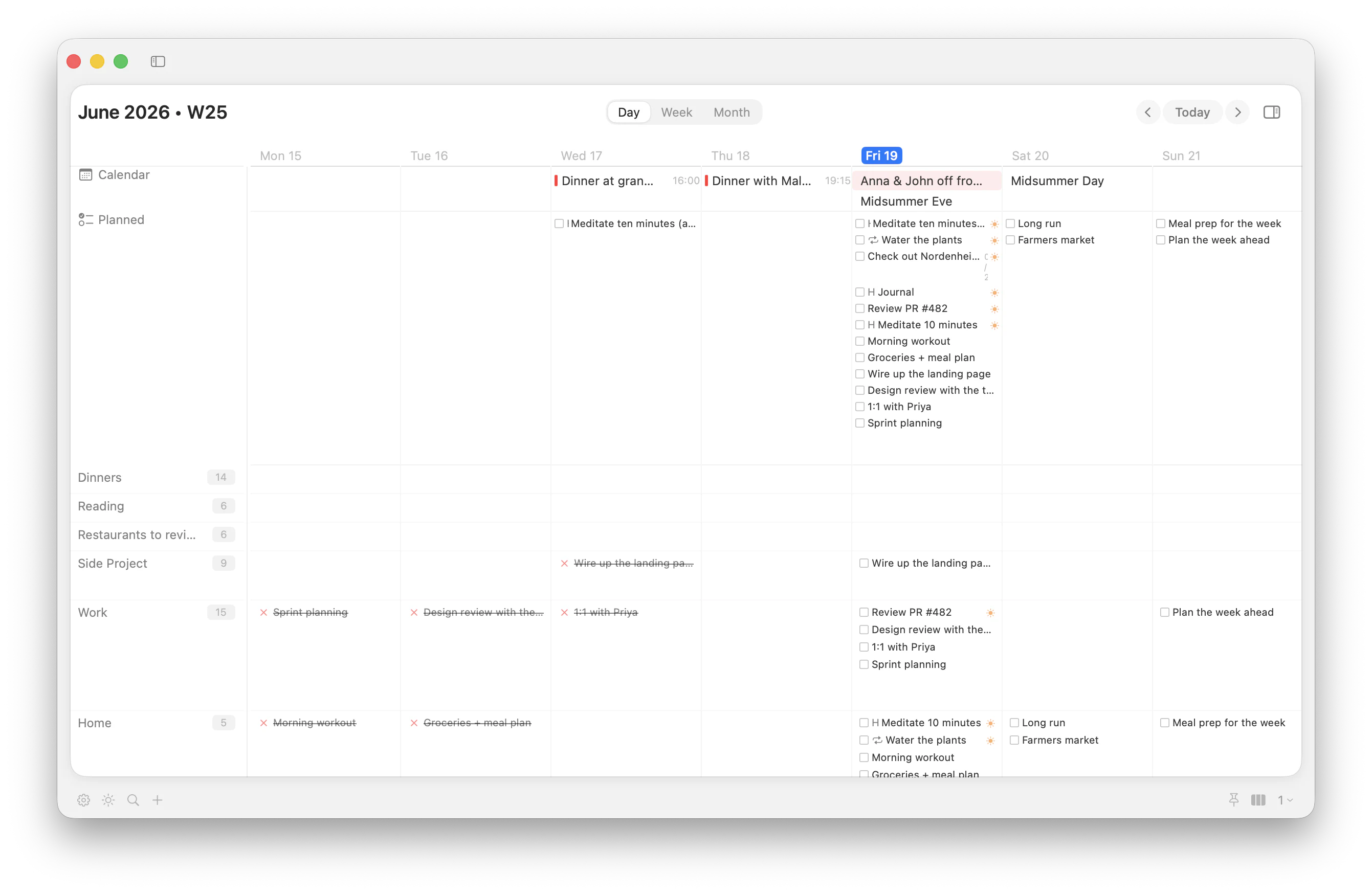
    Plan is a matrix: your lists down the side, time across the top. The zoom sets the grain — Day, Week, Month, Year, or a year-by-month grid that puts five years on one screen. Long-horizon plans stop living in your head and start living somewhere you'll look.

    Schedule a task as loosely or precisely as you want — a whole year, a month, a week of it, or an exact day.

    • Year Japan in April 2027, Patagonia 2028, the sabbatical in 2029 — park each plan in the year it belongs, add months when they get real.
    • Month A September 2028 marathon becomes "long runs from March" — effort spread across months, visible at a glance.
    • Week The year as W1–W52, for plans that move in weeks, not dates.
    • Day Rows are the lists you choose; an empty cell is a day with nothing planned for that area — you spot the gap before the week swallows it.
    • Vague until it isn't Plans carry a date range and a precision — "sometime in 2028" is allowed to stay loose.
  4. TIME BLOCKS & ROUTINES

    Block an area of life — then just work it

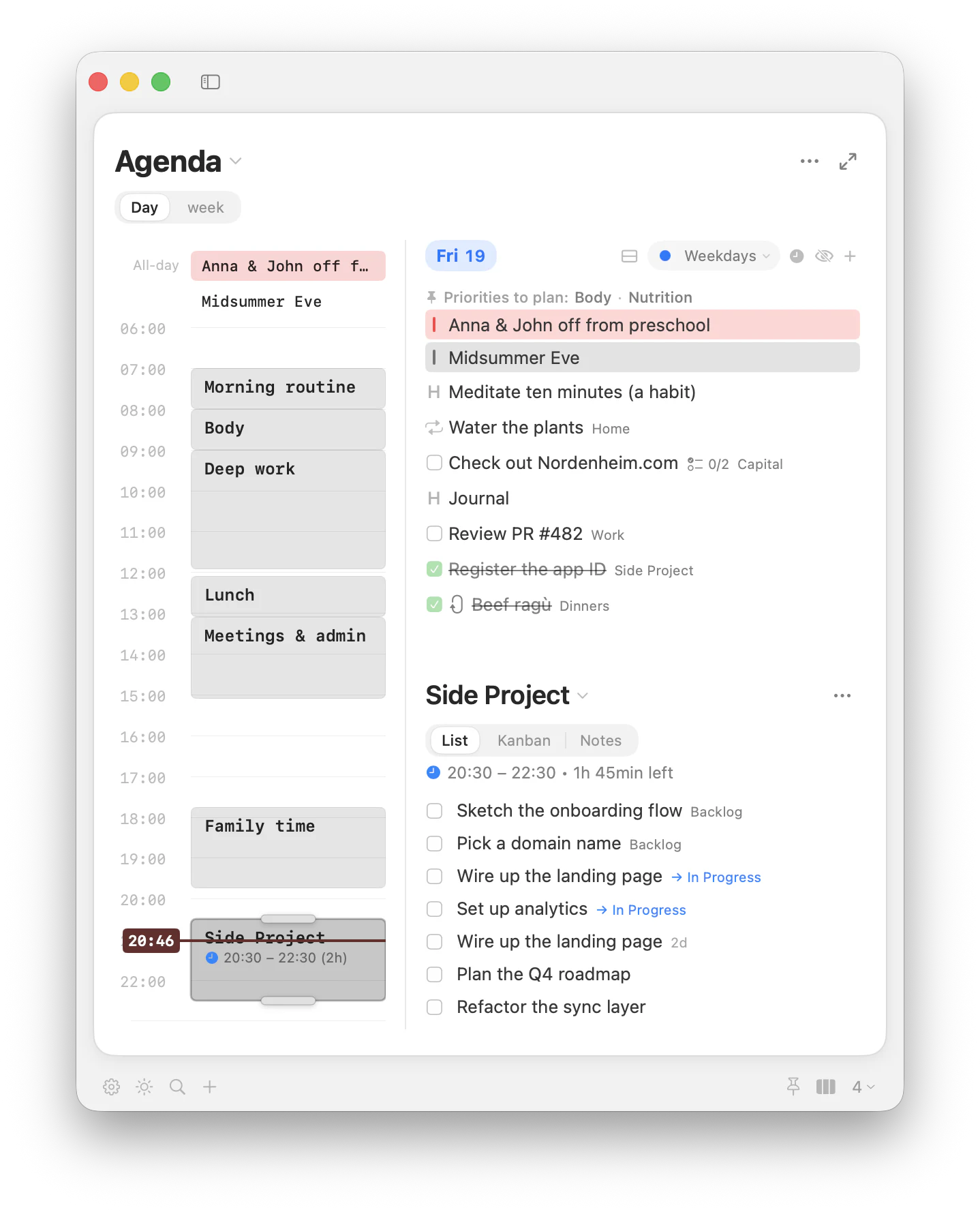
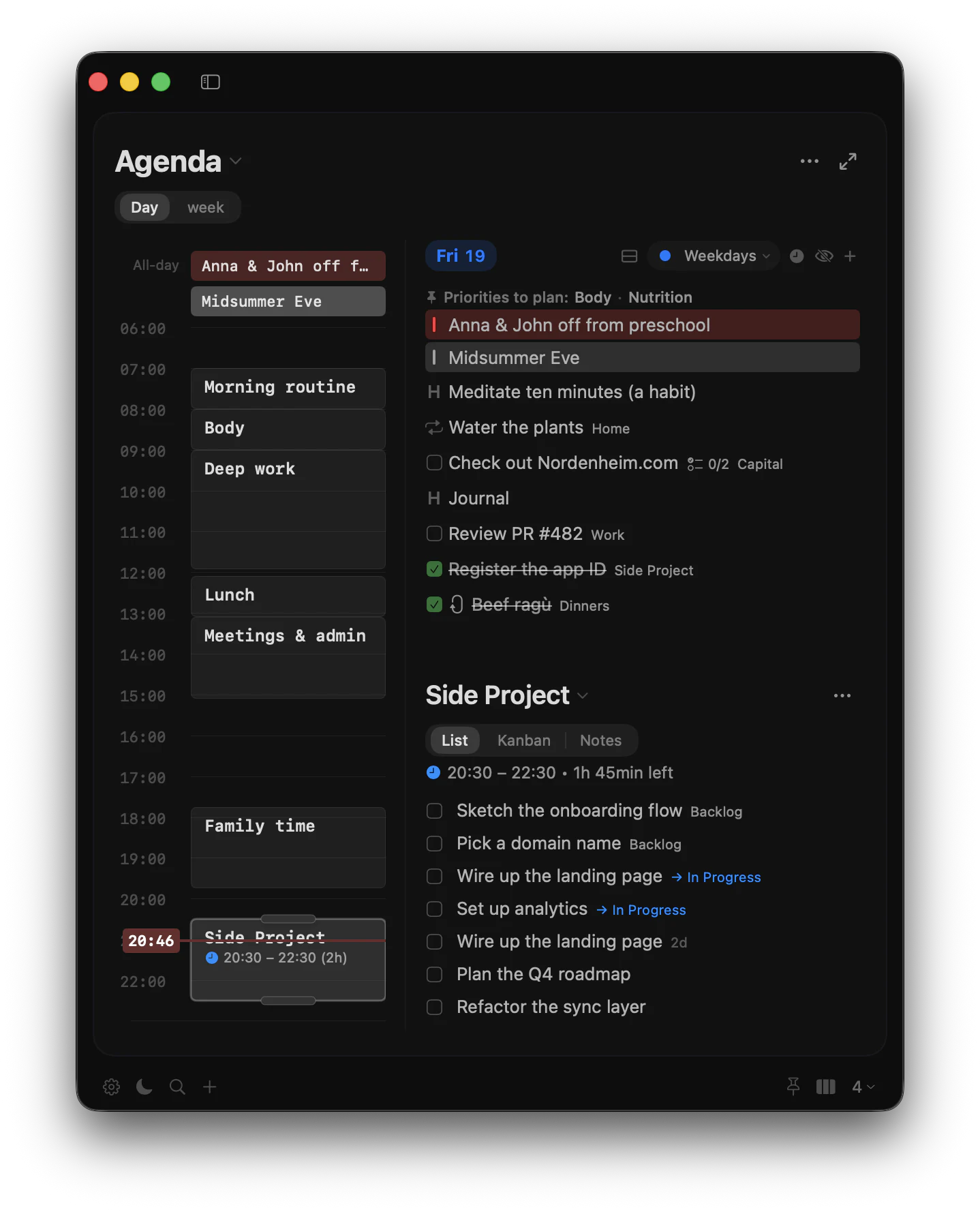
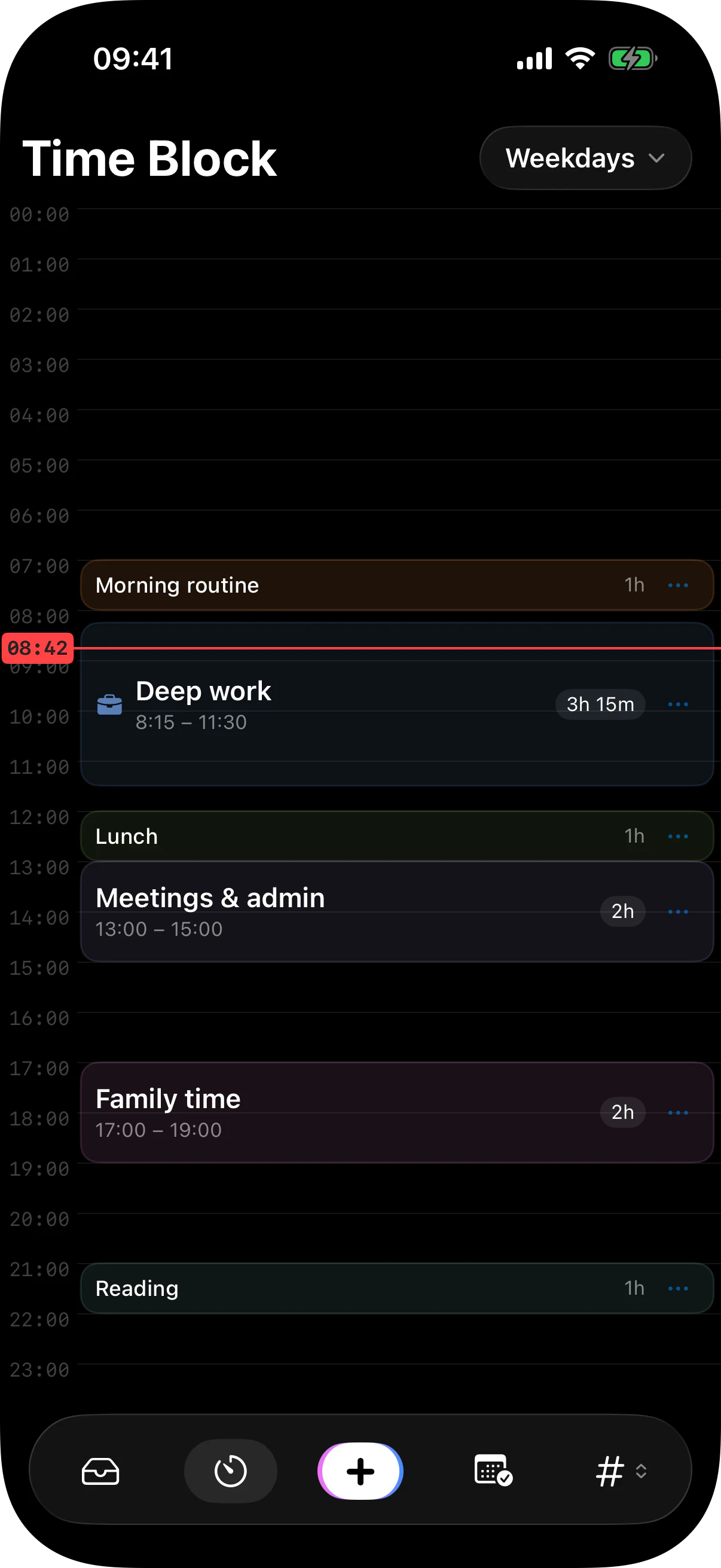
    A time block is usually more than a task — it's a whole area of your life given a slot of time. When the block arrives, you don't plan, pick, or administer anything; you just work on that part of your life for as long as it's set aside. Stack blocks into routines — Weekday, Weekend, Travel — and the right one applies itself at midnight. A single task can also claim a block of its own when you need one, but time-blocked areas of life that matter never quietly get neglected.

    • An area, not a task A block holds a whole part of life — Body, Work, Family — not one to-do.
    • No admin, just work When the block starts the choosing is already done; you give the time to that area and go.
    • Stacked into routines Weekday, Weekend, Travel — each day belongs to one, and it switches itself at midnight.
    • Nothing important gets skipped The parts of life that matter get hours set aside, not just whatever time is left.
  5. FOCUS LISTS

    A quiet nudge toward what matters

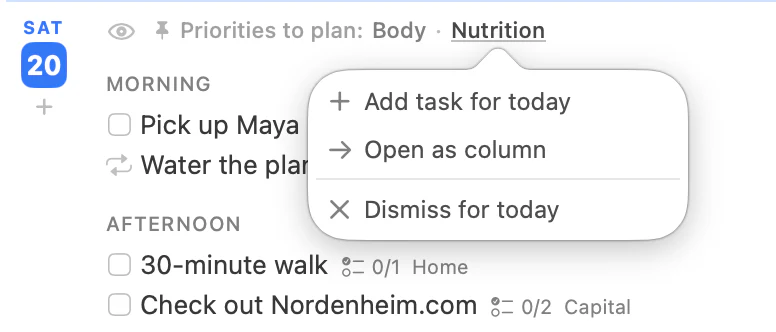
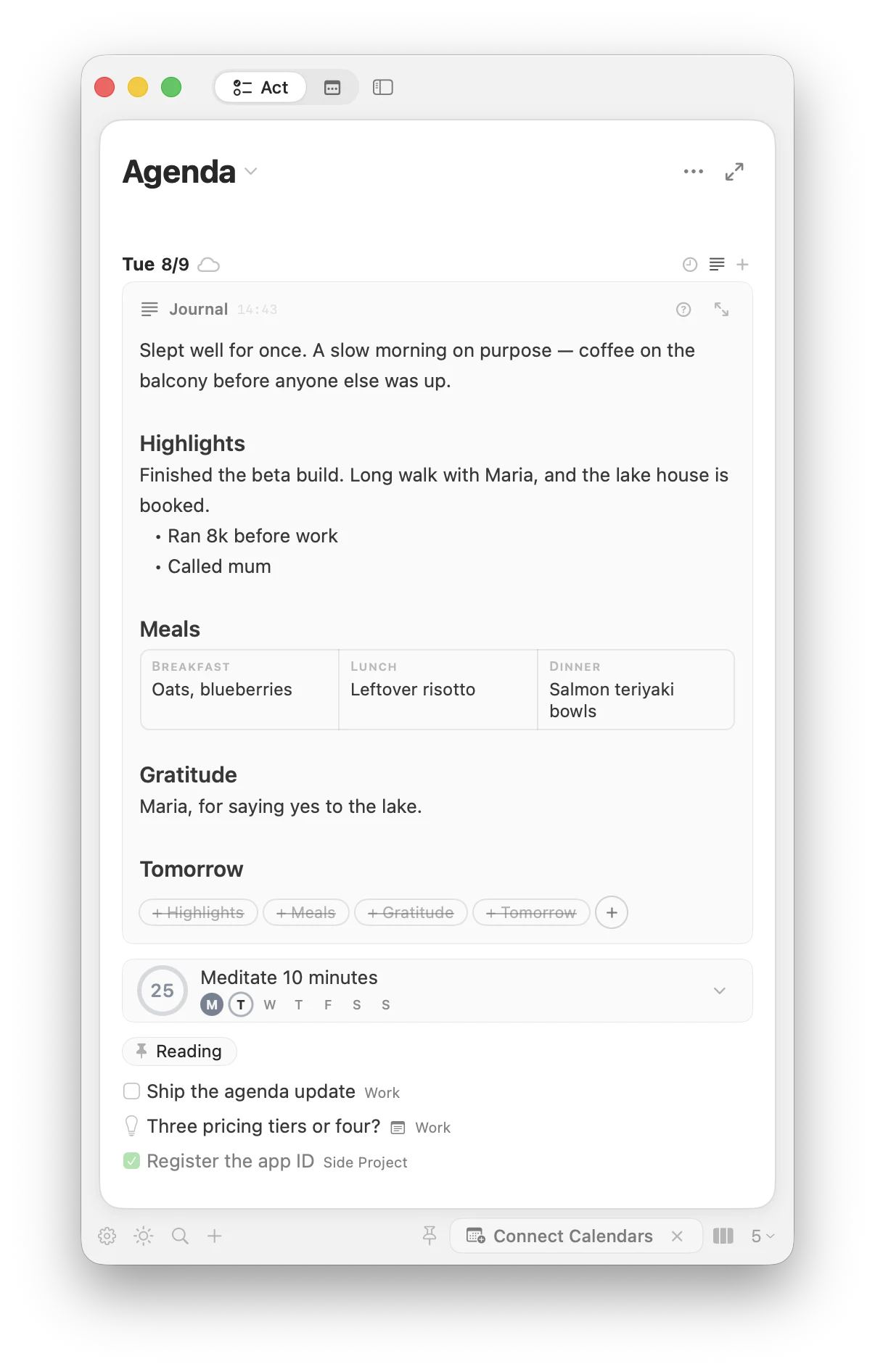
    Mark any list as a focus — Marathon, Spanish, the side project. Any day it has nothing planned, Matters slips a quiet chip into your agenda — a gentle nudge back to it, not an alarm or a guilt badge. Just: this still matters to you — want to give it something today?

    • + Add a task Drops a task on that list for today, straight from the chip.
    • → Open the list Opens it as a column, so you can pull an existing task in.
    • × Dismiss Clears the nudge for today only; tomorrow it's honest again.
    • Where you're looking Nudges live in the agenda's today cell — not in a notification you'll swipe away.
  6. COLUMNS

    Your screen, your call: one column, three or six

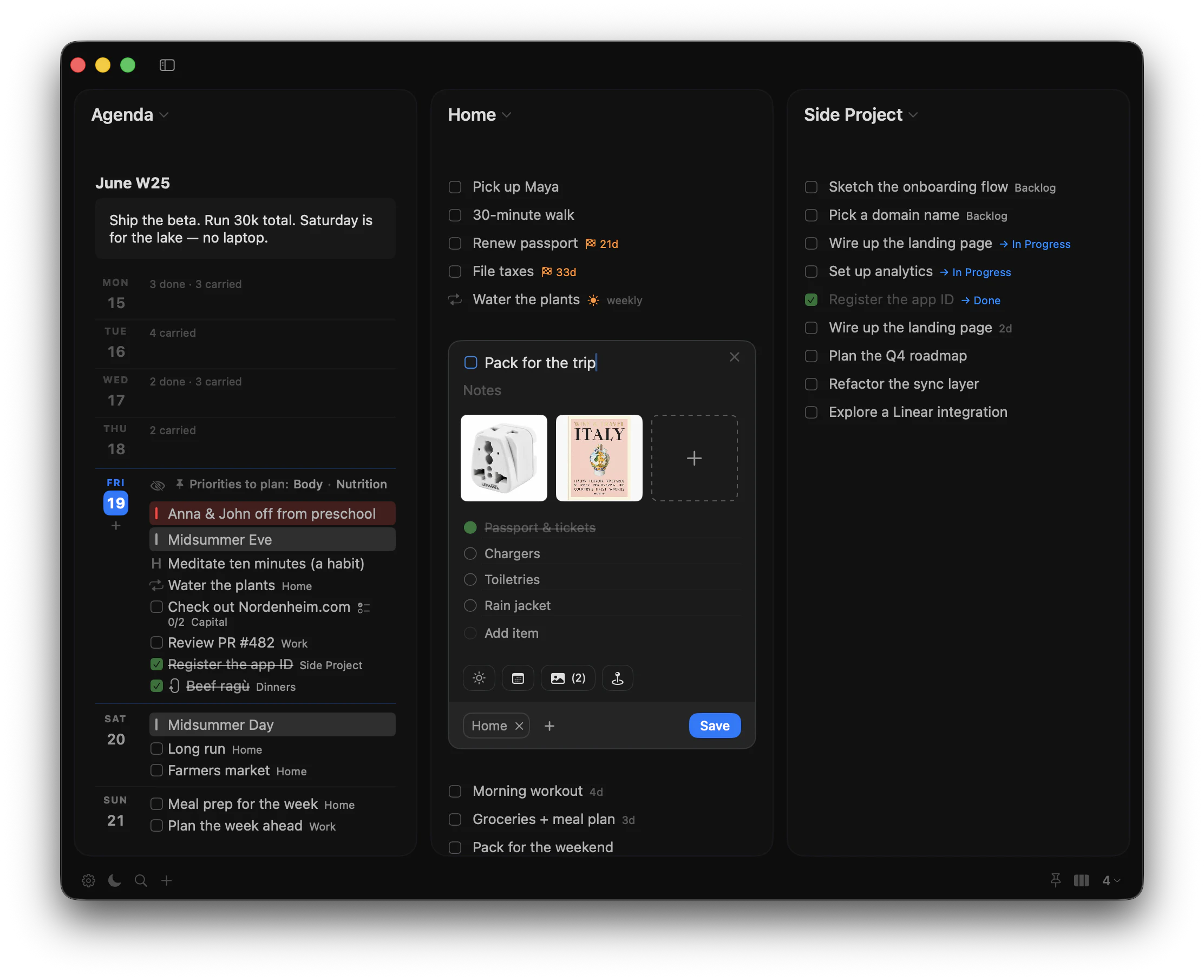
    On a phone, you swipe between lists. On a Mac you have a real screen, and you decide how it's spent: pin Today next to Work next to Reading, cap the layout at any number of columns, or remove the cap entirely and let the screen decide.

    • Set your own cap One to six columns, or unlimited — you decide the maximum.
    • Even by default Columns share the width evenly; drag the dividers when they shouldn't.
    • Stack two in one Put two short lists in a single slot, top and bottom.
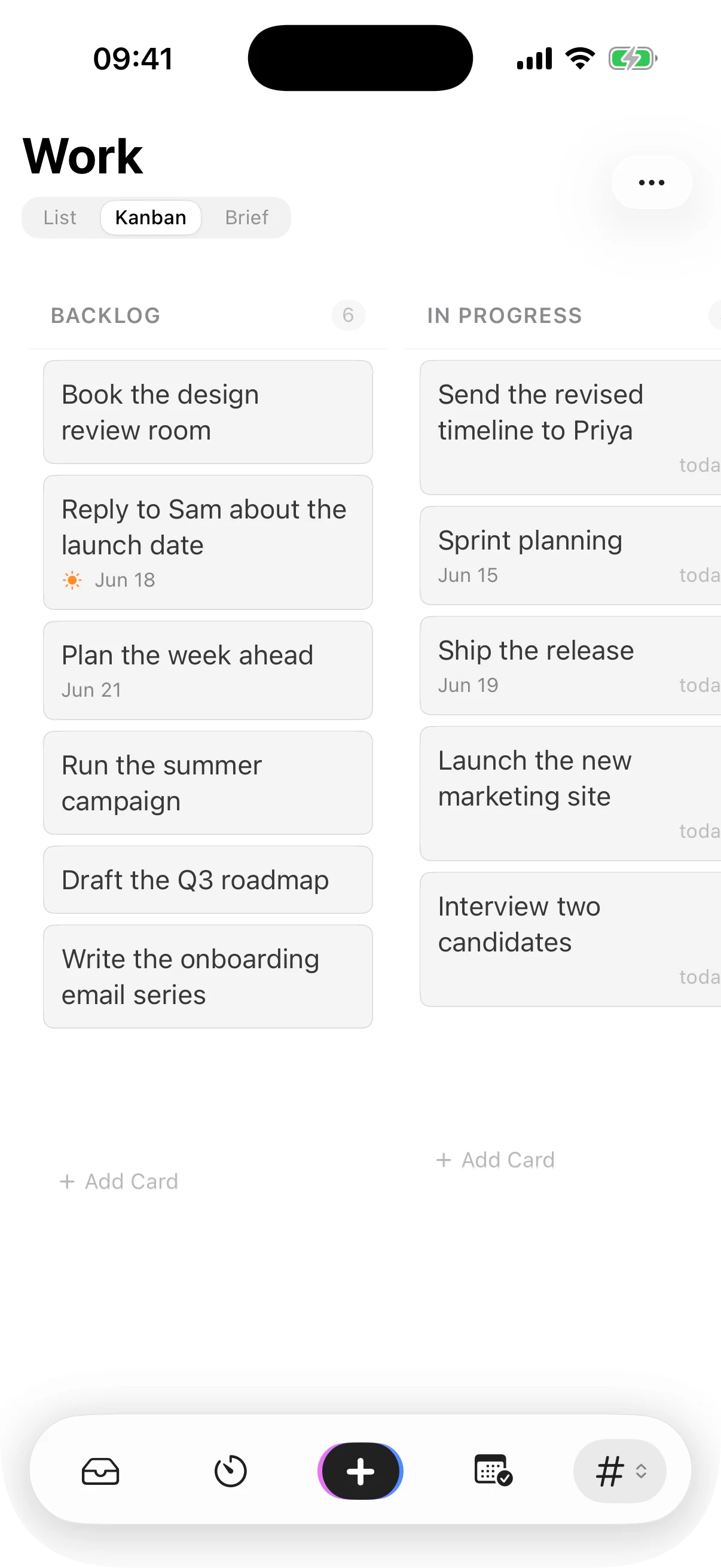
    • Each keeps its view Every list holds its own view — List, Kanban, or Brief — and sort order.
    • Expand to full focus One keystroke blows any column up when a single thing needs everything.
  7. THE WEEK

    What matters this week, in your own words

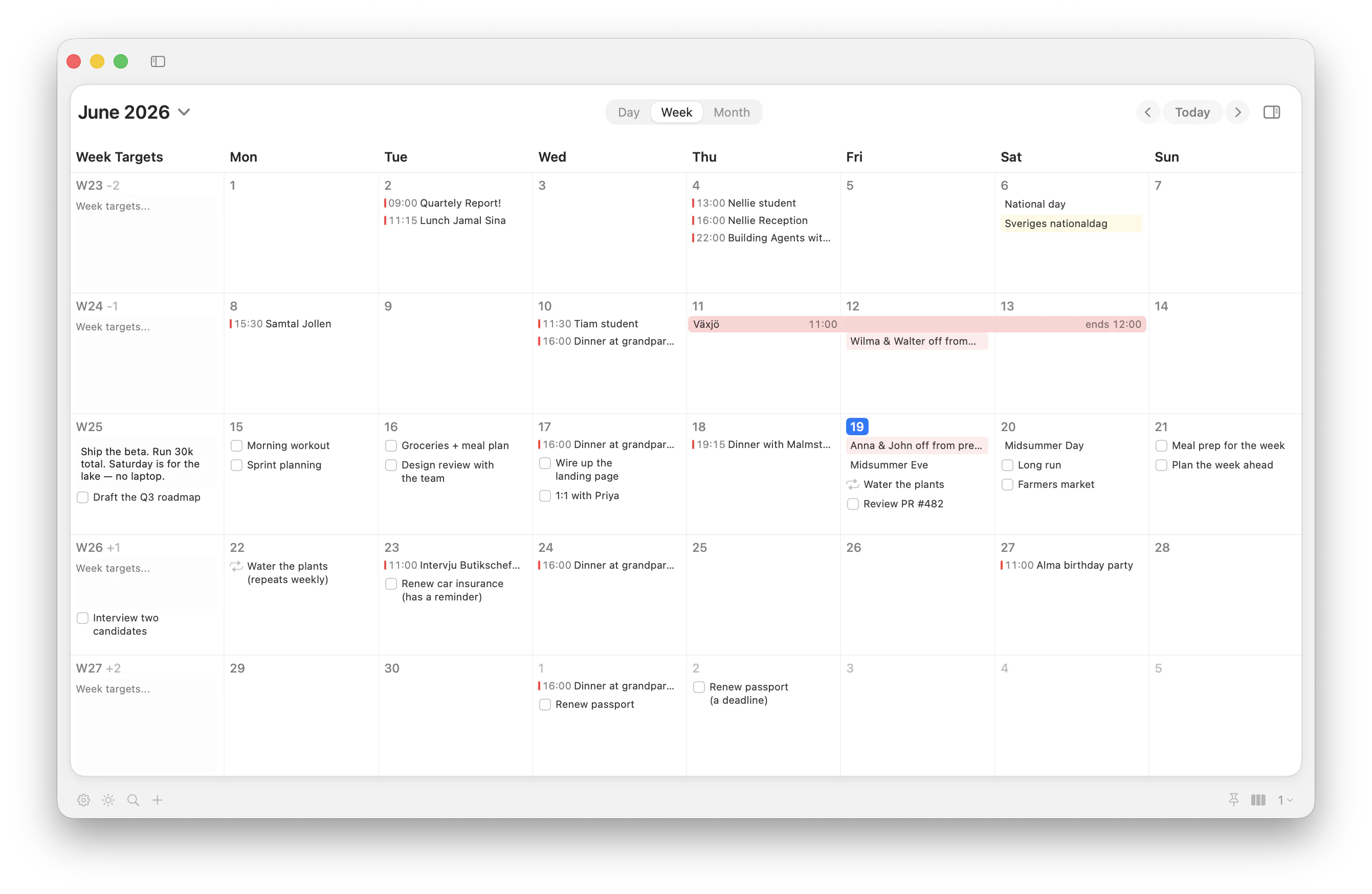
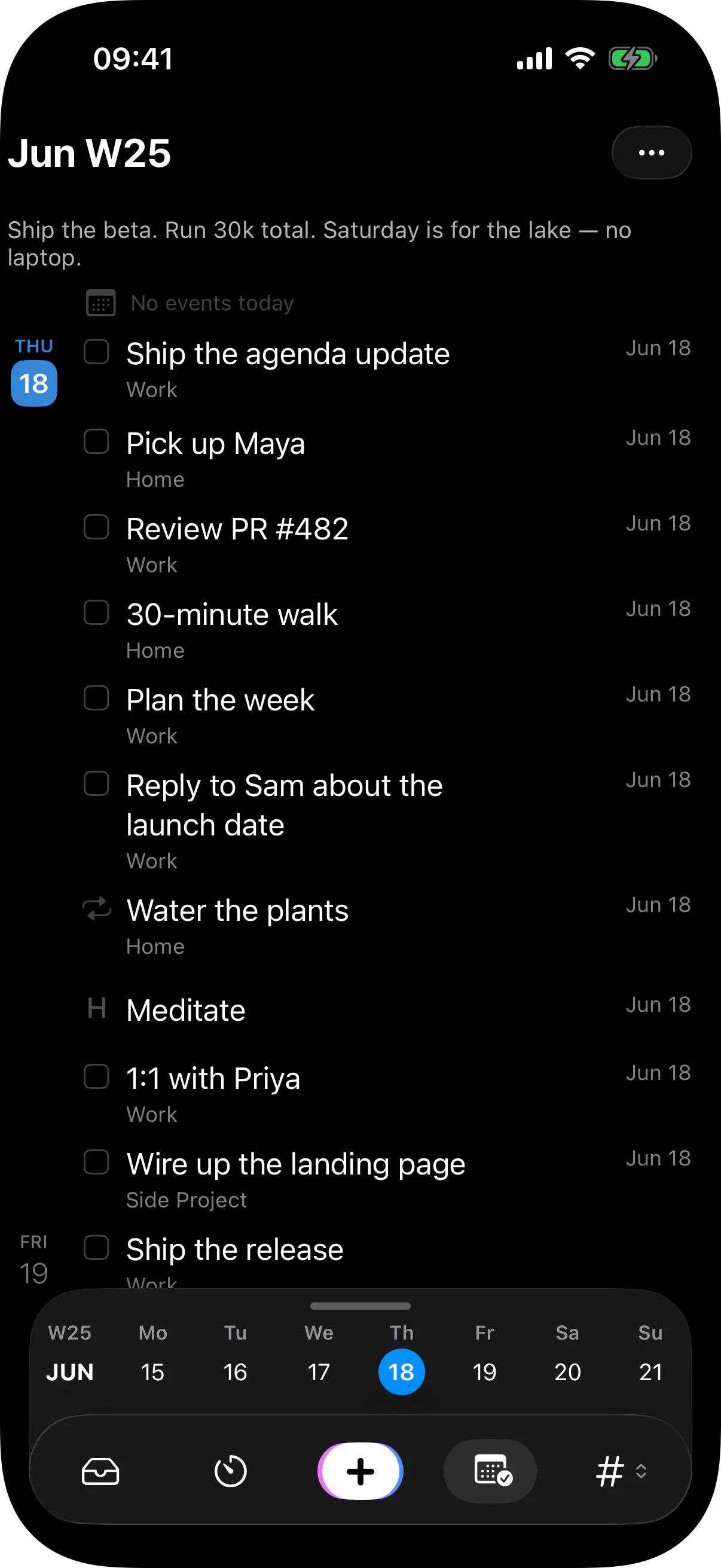
    Every week in the agenda starts with a journal line you write yourself. It's the part of a weekly review most apps skip — not the tasks, the intent. The plan lives under it, the reason above it — and under each day, your calendar, tasks, and habits interleave by time.

    • A line of intent Write it Sunday night or Monday morning: "Ship the beta. Run 30k. Saturday is for the lake."
    • Weeks side by side This week and next, each with its own journal line.
    • A week inbox Holds "sometime this week" tasks until they pick a day.
    • Honest on Monday Carry-forward keeps the week clear about what Friday didn't finish.
    • Calendar events, inline Read-only from the calendars you choose (through Apple's permissions), interleaved with your tasks by time in Today and the agenda.
    • Habits in the day A habit becomes a checkable step in the sequence — "after the 10:00 meeting, stretch" is a plan, not a hope.
  8. BRIEF

    A standing brief for what a list is really about

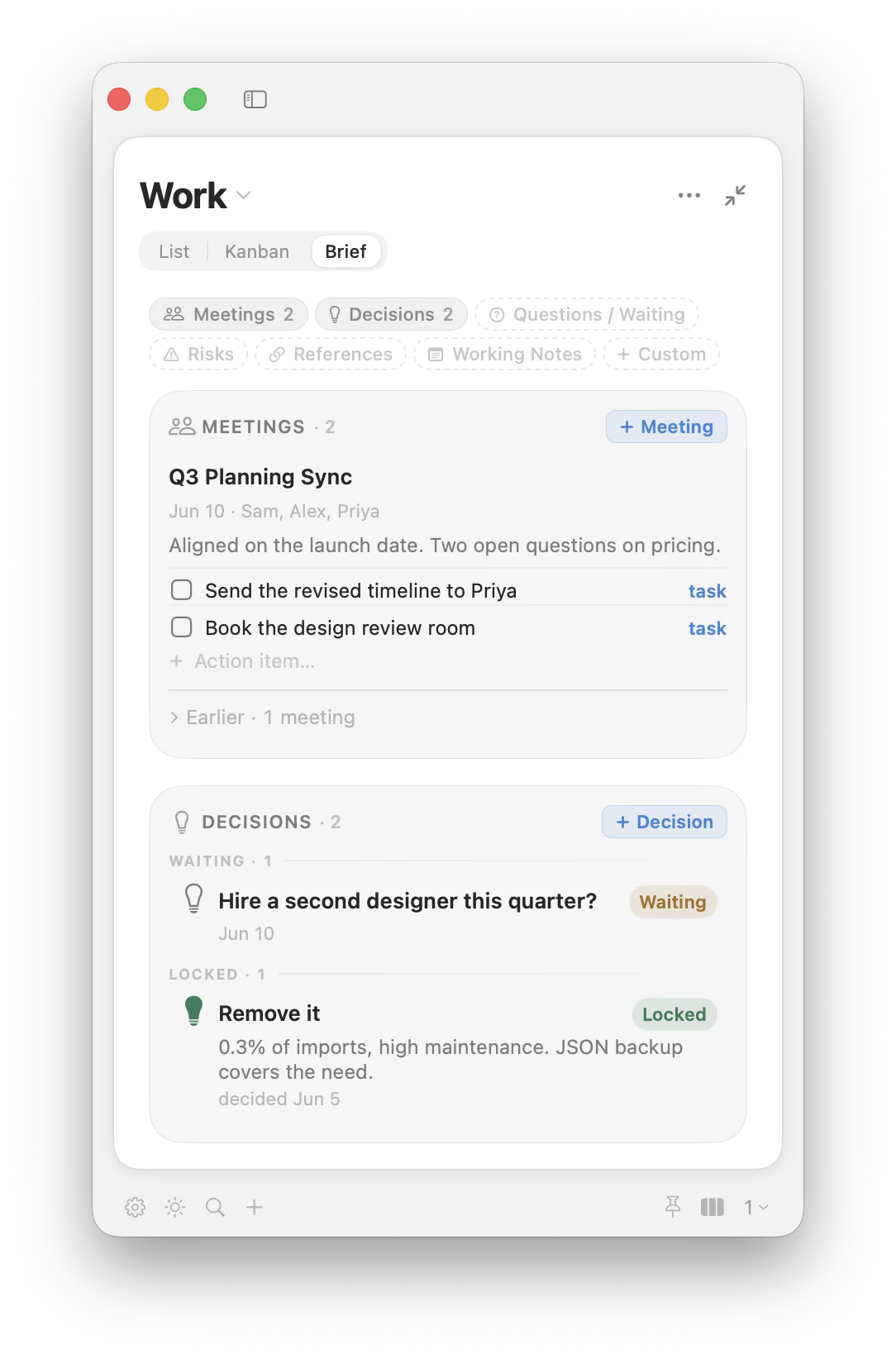
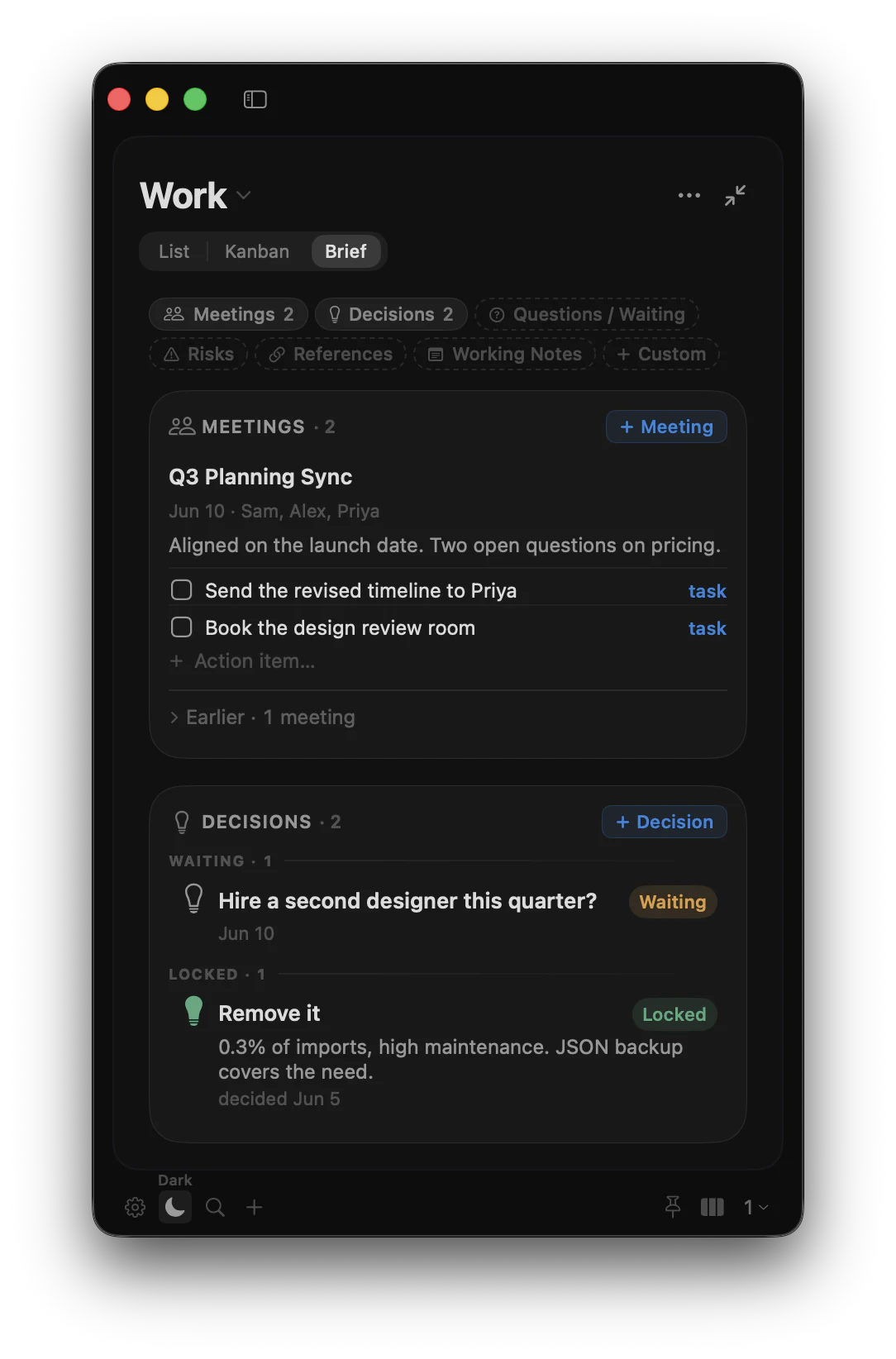
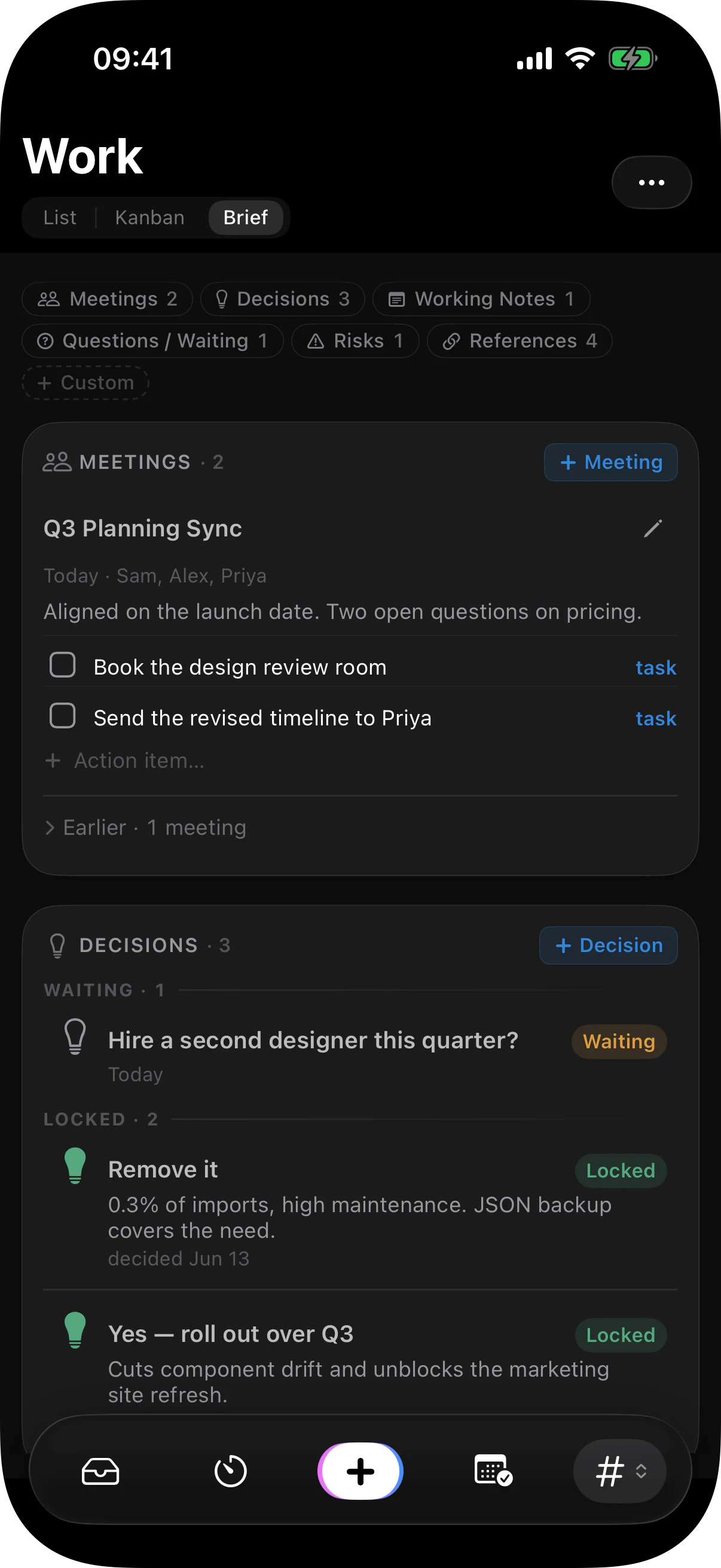
    Some lists are more than tasks. A project has meetings, decisions, and open questions. Brief gives any list its own operating page, so the context lives next to the to-dos, not in a doc you'll never reopen.

    • Meetings Notes and action lines — and the action lines are real tasks, so they show up in Today and the list.
    • Decisions Gathered from wherever you captured them: what you chose, why, and whether it's Waiting or Locked.
    • Notes, questions, risks Free-text sections for the open threads a task list can't hold.
    • Just a tab Switch List · Kanban · Brief without leaving the column.
  9. HABITS

    Habits with a memory: streaks, consistency, a calendar

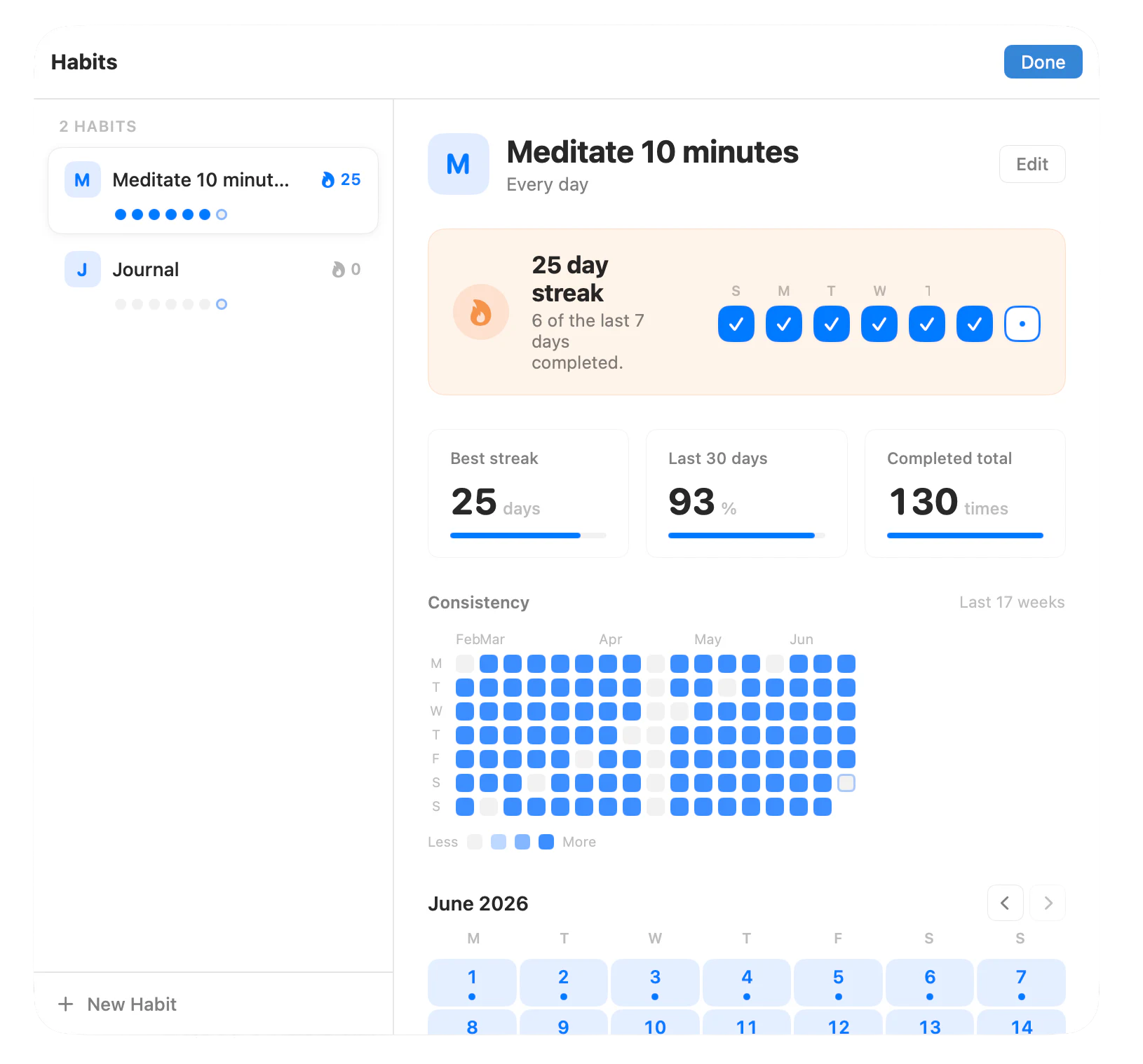
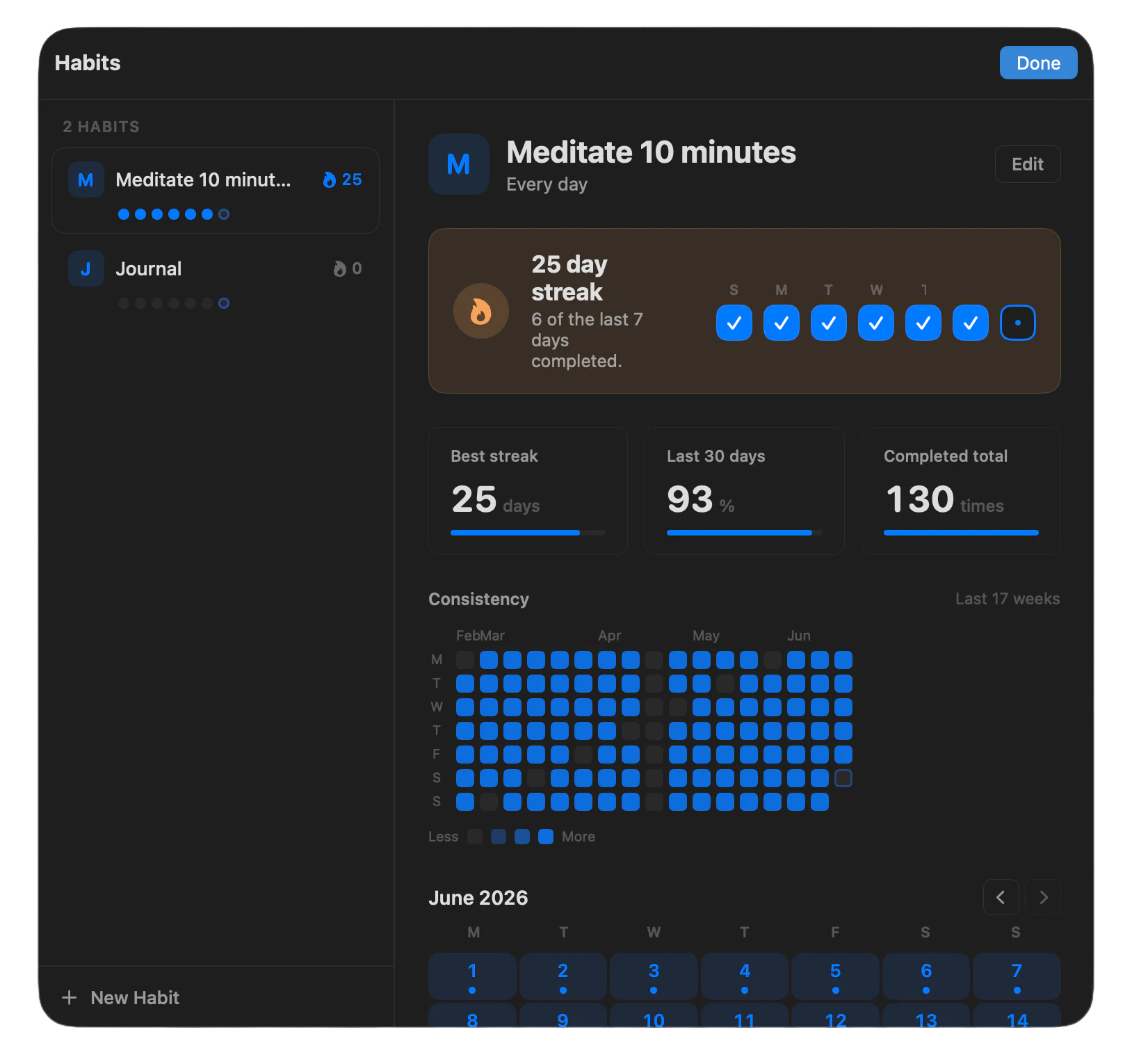
    A habit isn't just another checkbox. Each one keeps its own page — current and best streak, a consistency grid, and a month calendar — so "meditate ten minutes" becomes a record you can see, not a resolution you forget.

    • Streaks Current and best streak, with a gentle "start one today" when it's zero.
    • Consistency grid Weeks down, days across — the shape of the habit at a glance.
    • A real calendar Every completion on the month it happened, not just a running count.
    • Inline in the day Check it off where you already are — in Today and the timeline.

THE FAMILIAR, DONE WELL

Plus the tools you'd expect — on the same tasks

A board and a focus timer aren't what set Matters apart — plenty of apps have them. But the tools you live in should get the ordinary things right too, so these are built to the same standard, on the very same tasks.

FOCUS TIMER

Focus on one task — or commit to a list

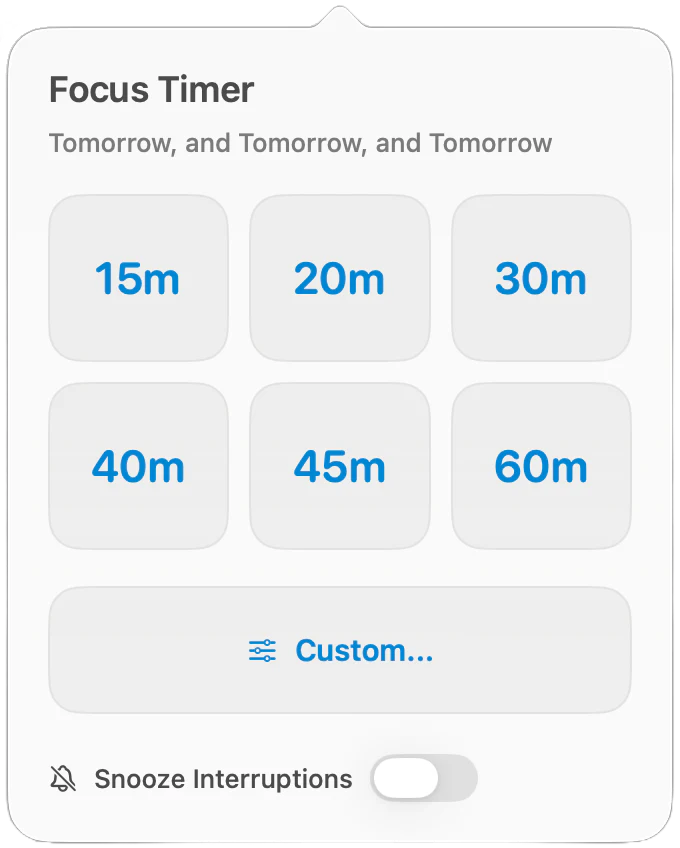
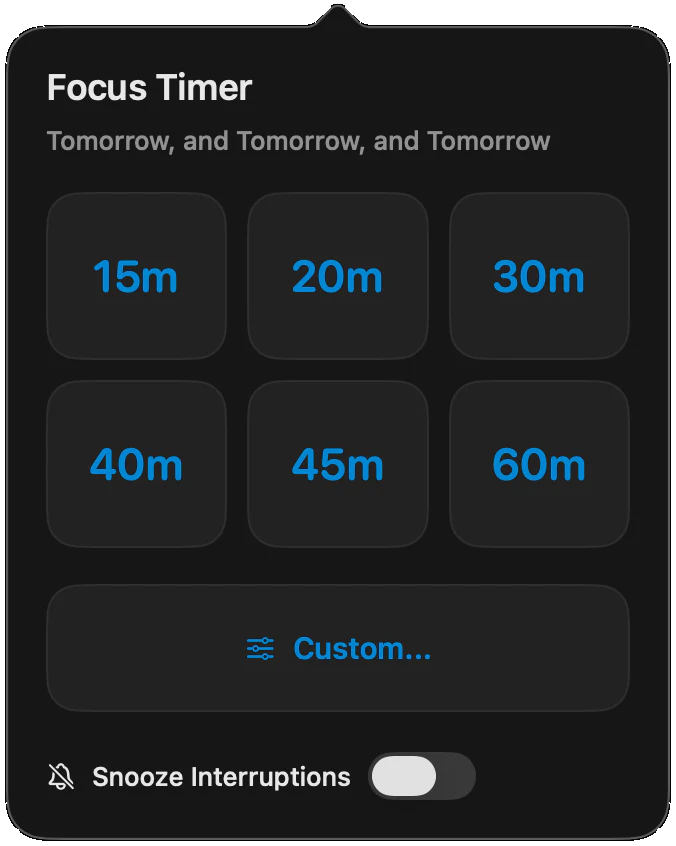
Start a timer on a single task when you know exactly what you're doing — or on an entire list to give a whole area of your life a slice of time, without pre-deciding which item gets it. A floating countdown rides above every window, and each task and list keeps a quiet history of its sessions.

KANBAN

The same tasks, as a board when you need one

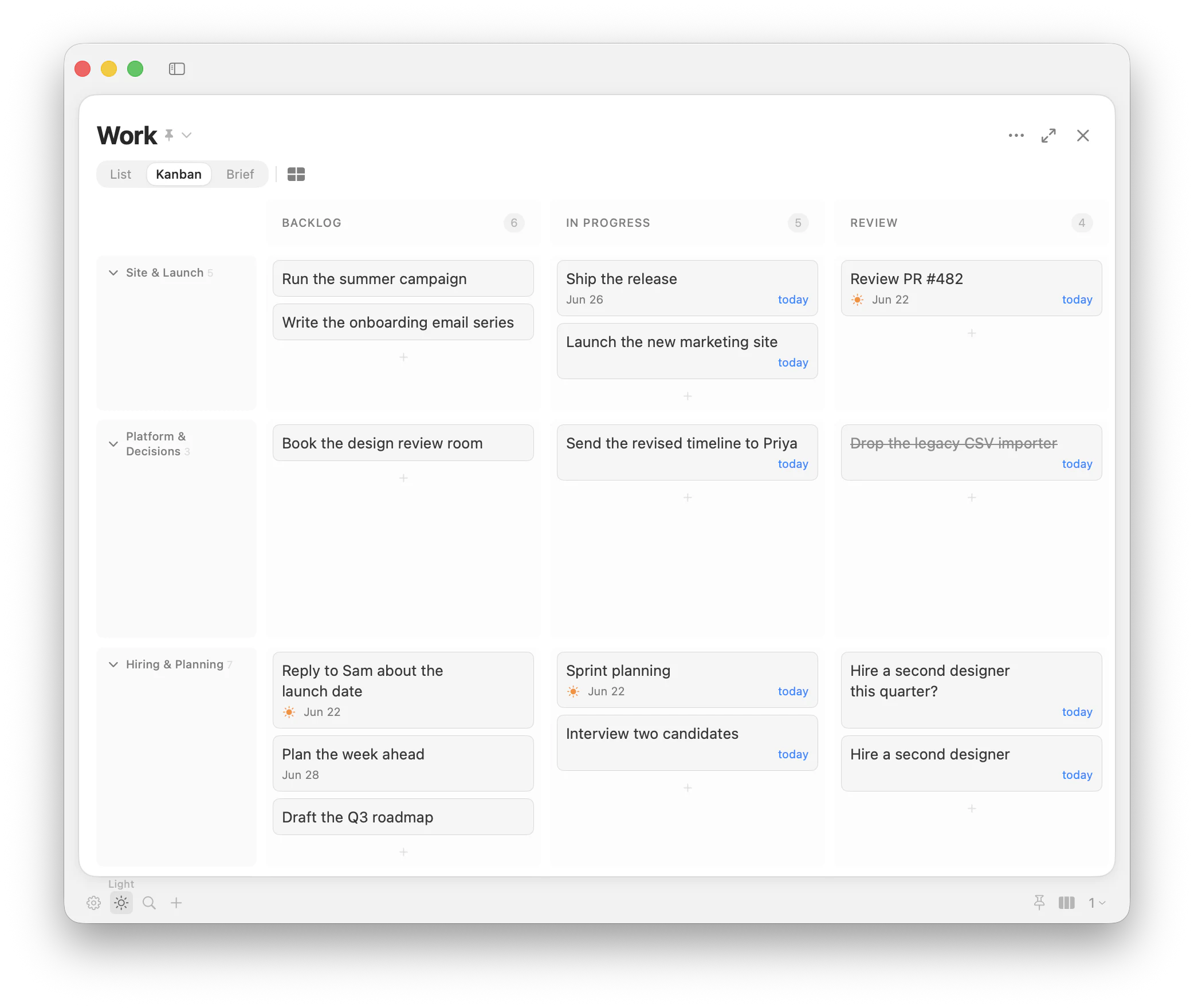
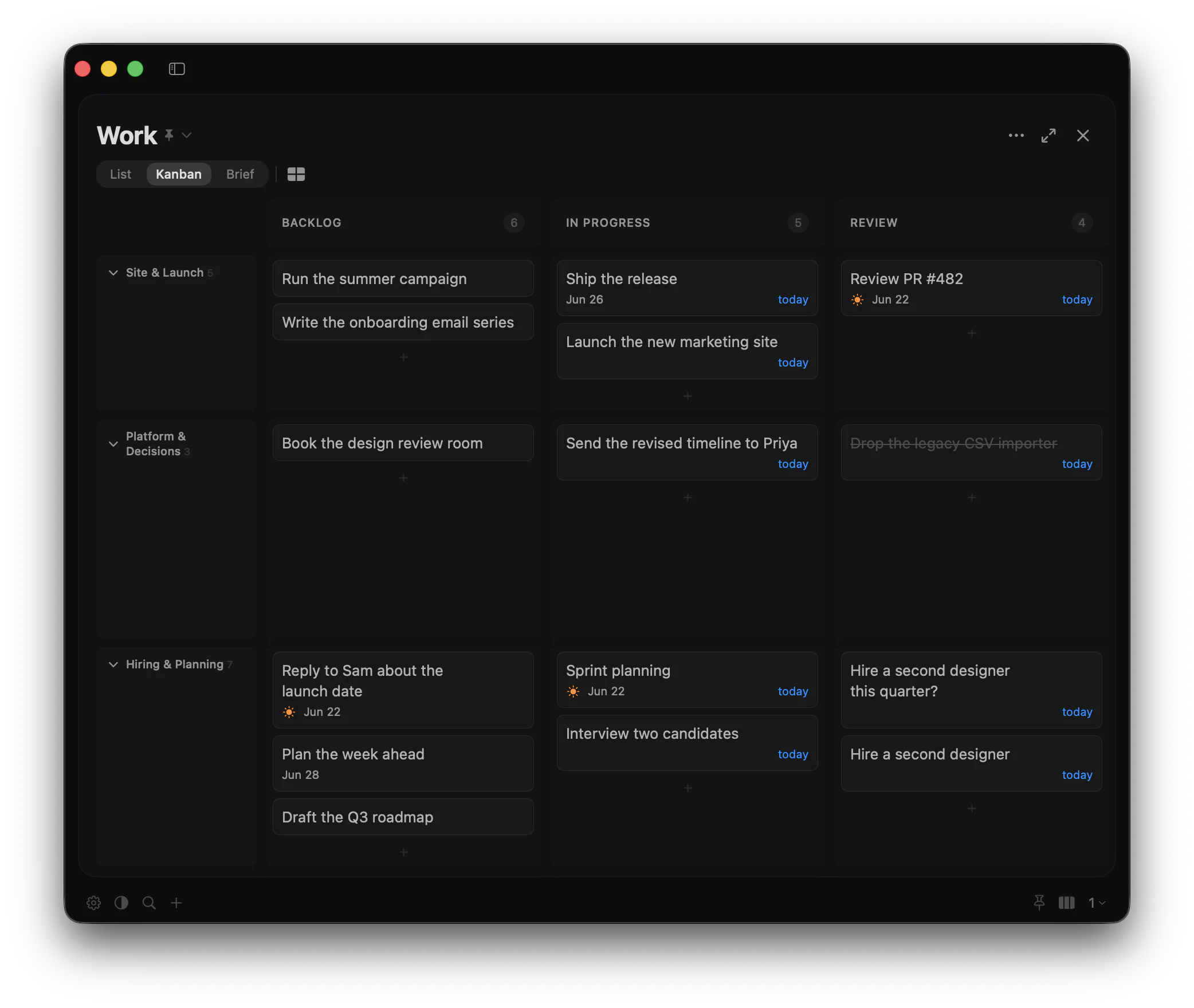
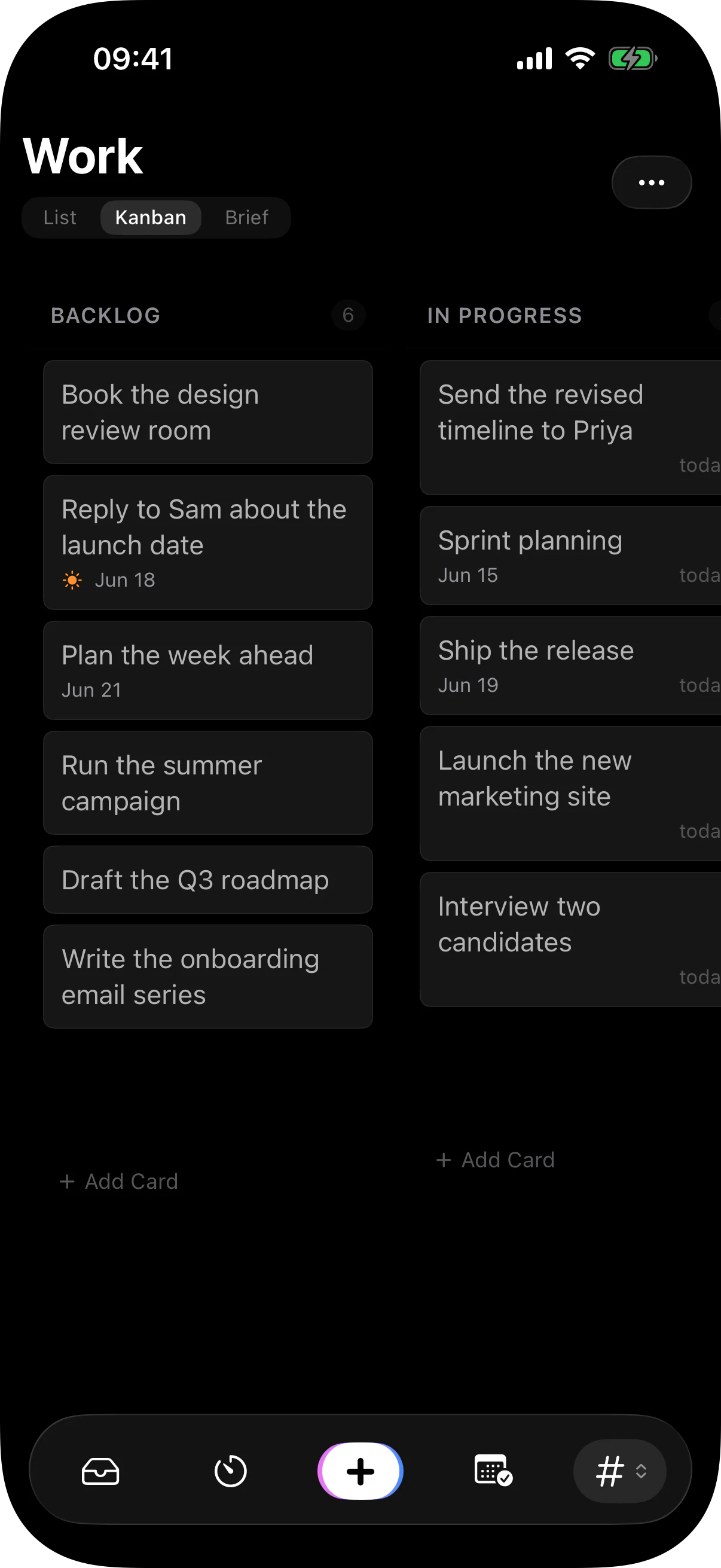
Every list is also a Kanban board — drag tasks across stages, group them into swimlanes, and see the work in flight at a glance. List, Kanban, and Brief are just views of the same tasks; a card moved on the board is the same task in Today and the agenda.

AND EVERYTHING ELSE

The smaller things, too

The ideas above are the shape of Matters. Under them sit the ordinary things a tool you live in should get right — and a handful you might not expect.

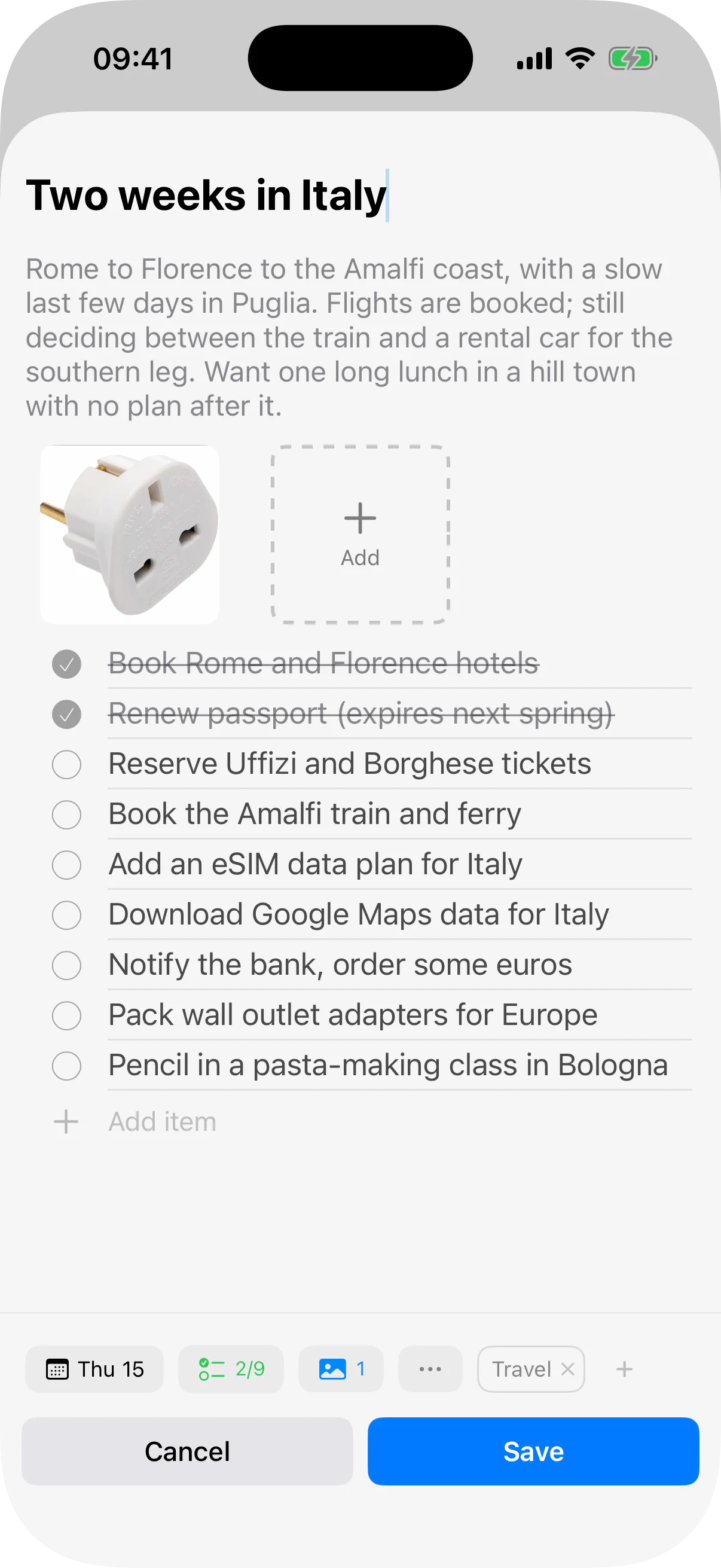
Images in tasks

Pin up to three photos to a task — quietly compressed.

Checklists

Break a task into subtasks, each ticked on its own.

Notes that catch links

Jot a note; any URL in it becomes tappable on its own.

Reminders

A local nudge at the time — or a few days before.

Deadlines, not just dates

Flag a hard one — it warms to orange, then red when overdue.

Recurring tasks

Daily, weekly, monthly, yearly — with an end in sight.

Drag to reschedule

Drop a task on a day to set it; multi-day spans move whole.

Morning, afternoon, evening

Today falls into time-of-day sections, not one long list.

Your own dividers

Add named headings inside a list, and fold them away.

The Logbook

Everything done, grouped by today, this week, this month.

Search that remembers

Full-text across tasks, notes, and tags — recent queries kept.

Select many at once

Move or clear a whole batch in a single gesture.

Your calendar, inline

Events sit under each day, in their own calendar's colors.

Location reminders

Tie a task to a place; a nudge on arrival or leaving.

Time-block alerts

A quiet ping as each block of your routine begins.

Menu-bar timer

Your focus countdown lives in the Mac menu bar.

Floating window

Keep Matters above every other app on the Mac (⌘⇧T).

Mini mode

Shrink to a slim strip of just today (⌘⇧M).

Keyboard-first on Mac

Drive the whole app by keyboard; ⌘/ lists every shortcut.

Home-screen widget

Today's tasks, right on your iPhone home screen.

Import from other todo apps

Bring your tasks over from a CSV, duplicates handled.

Backup & export

A full JSON backup or a CSV, whenever you want one.

Open from anywhere

Add, complete, or jump to a task via matters:// links.

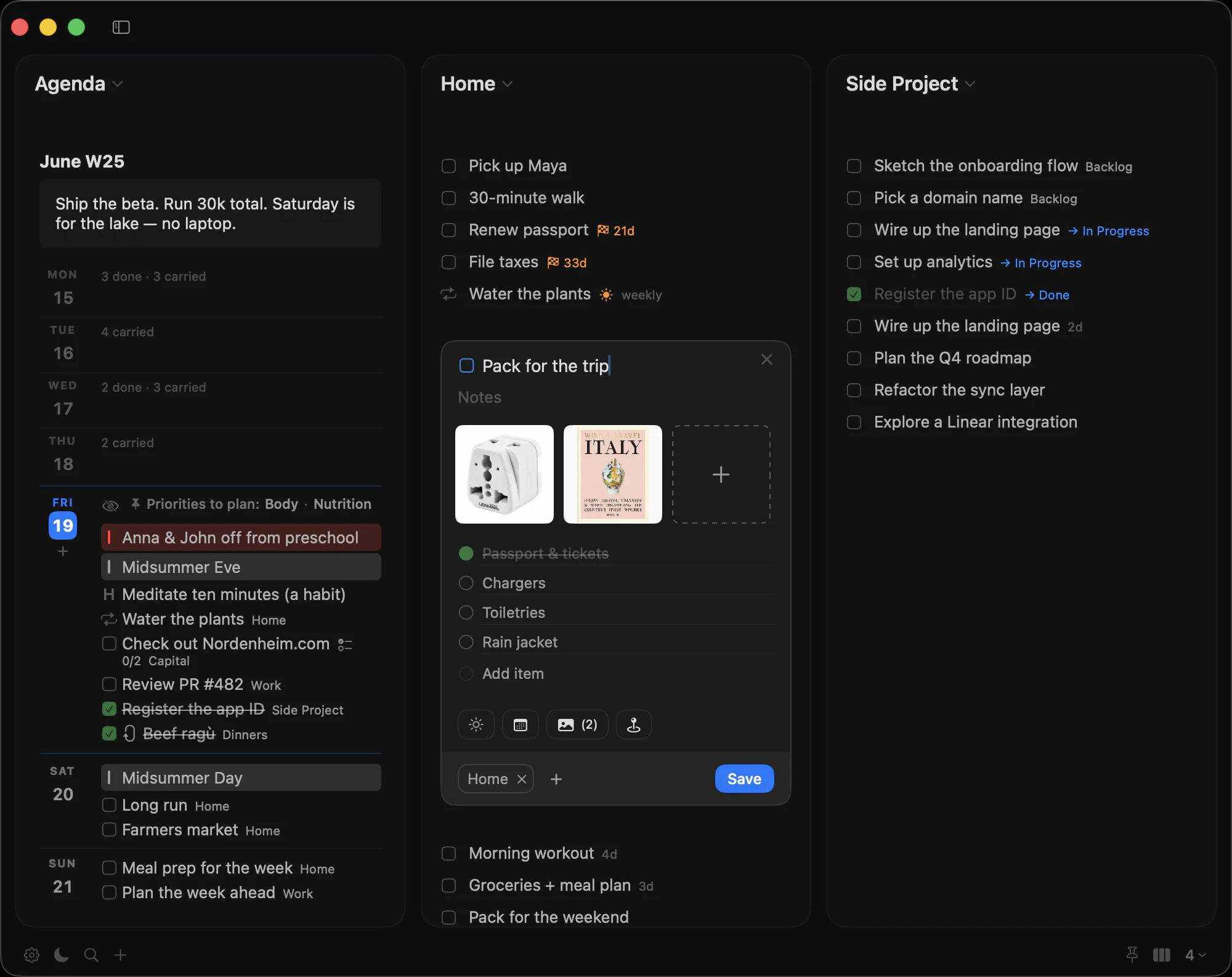
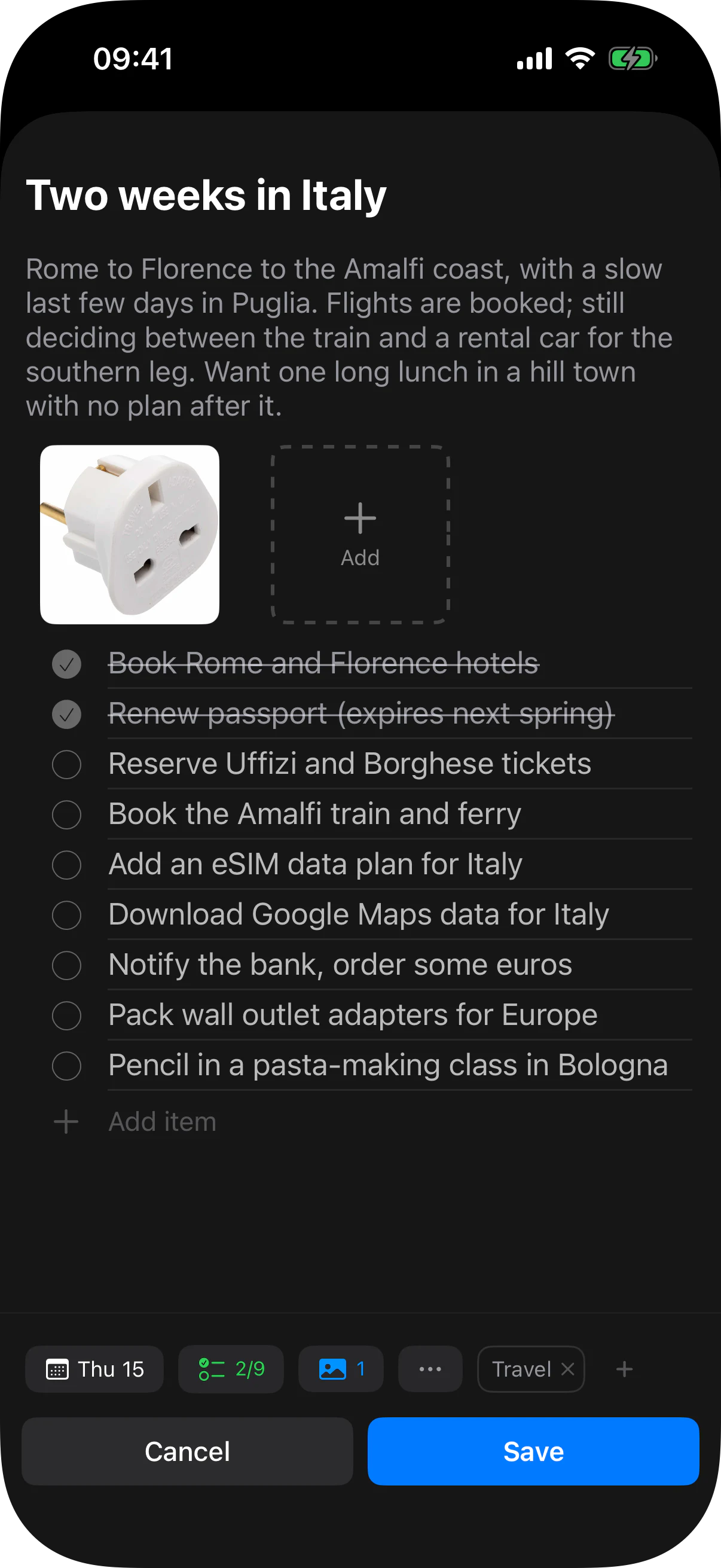
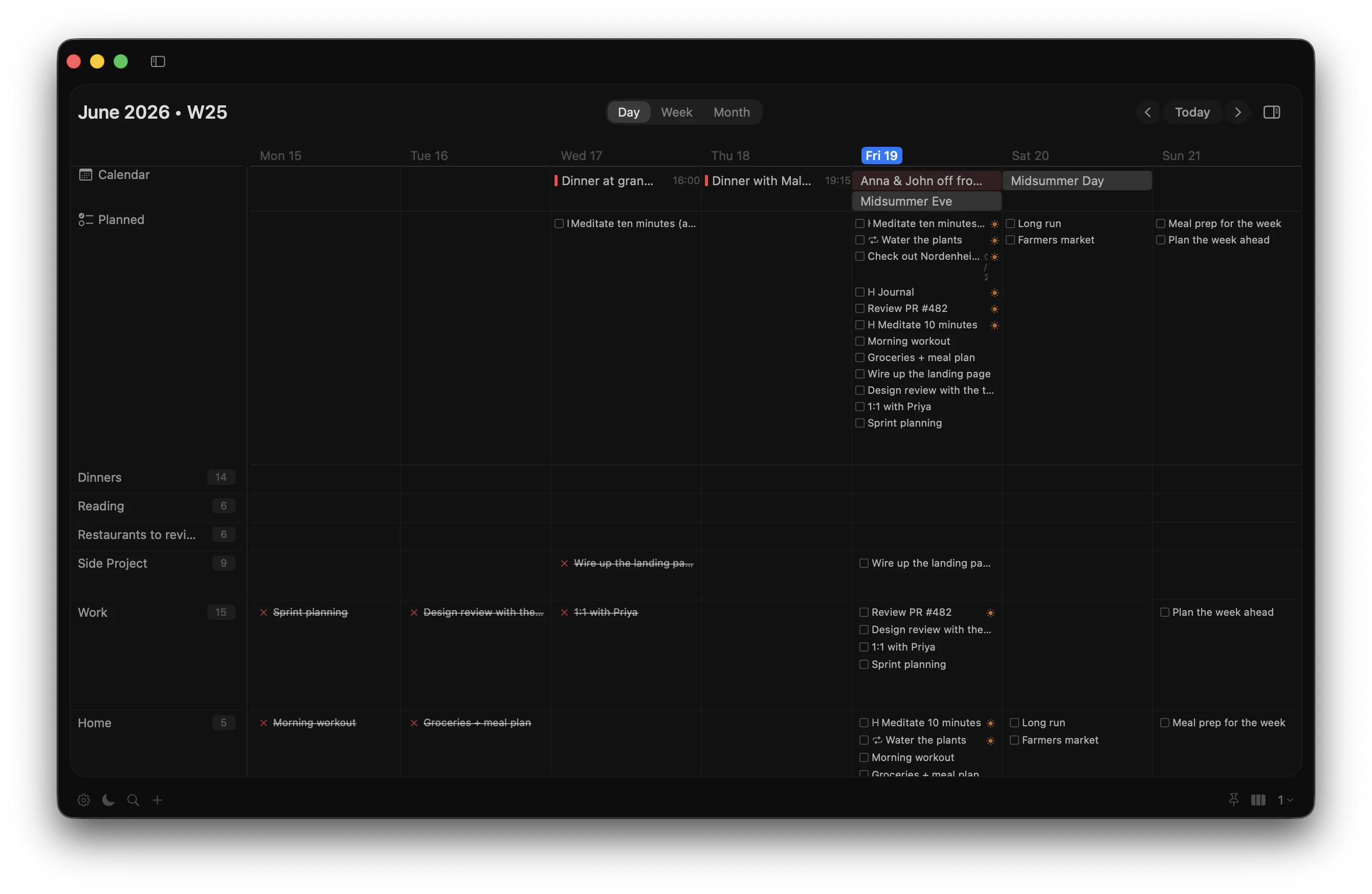
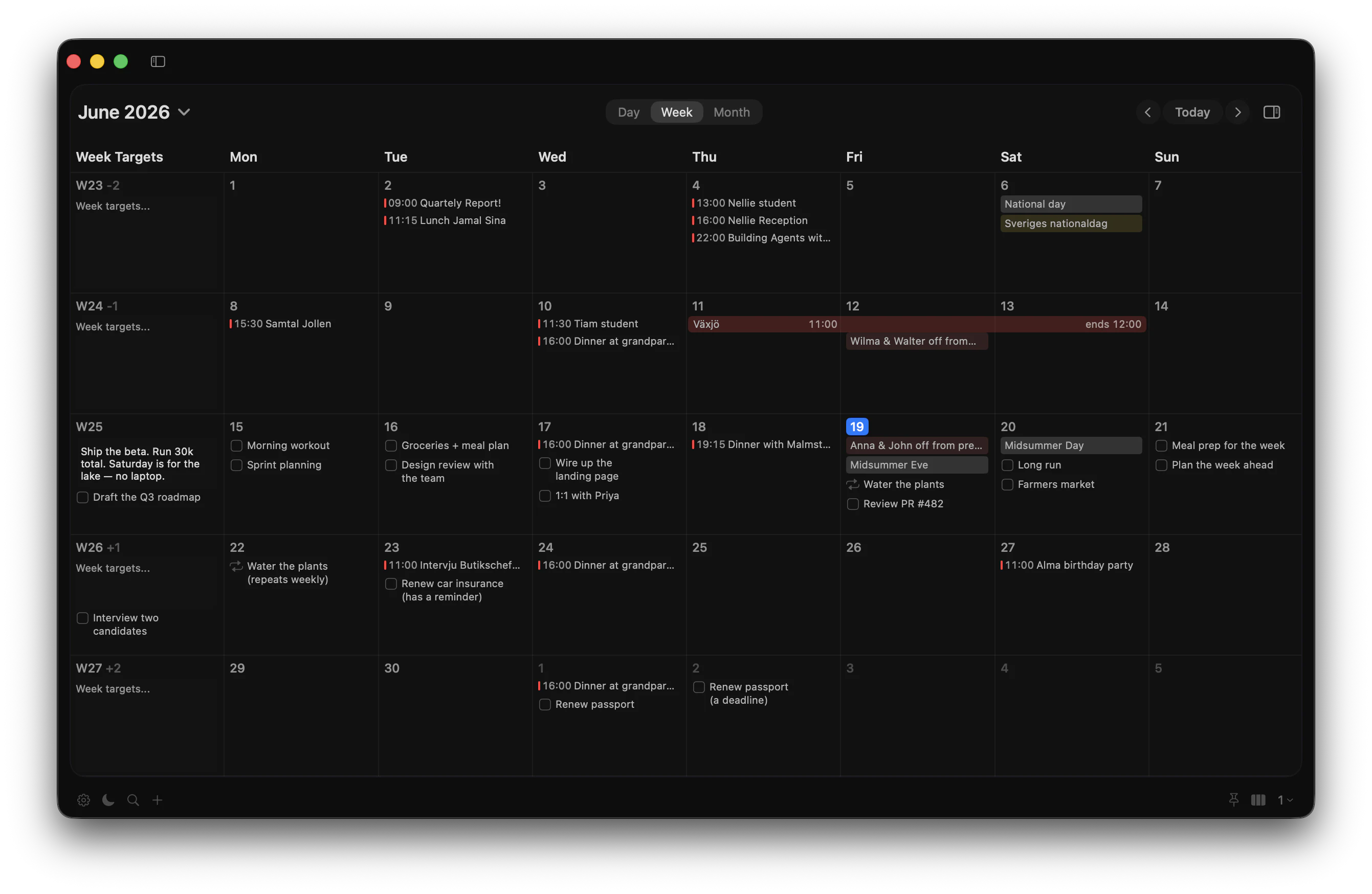
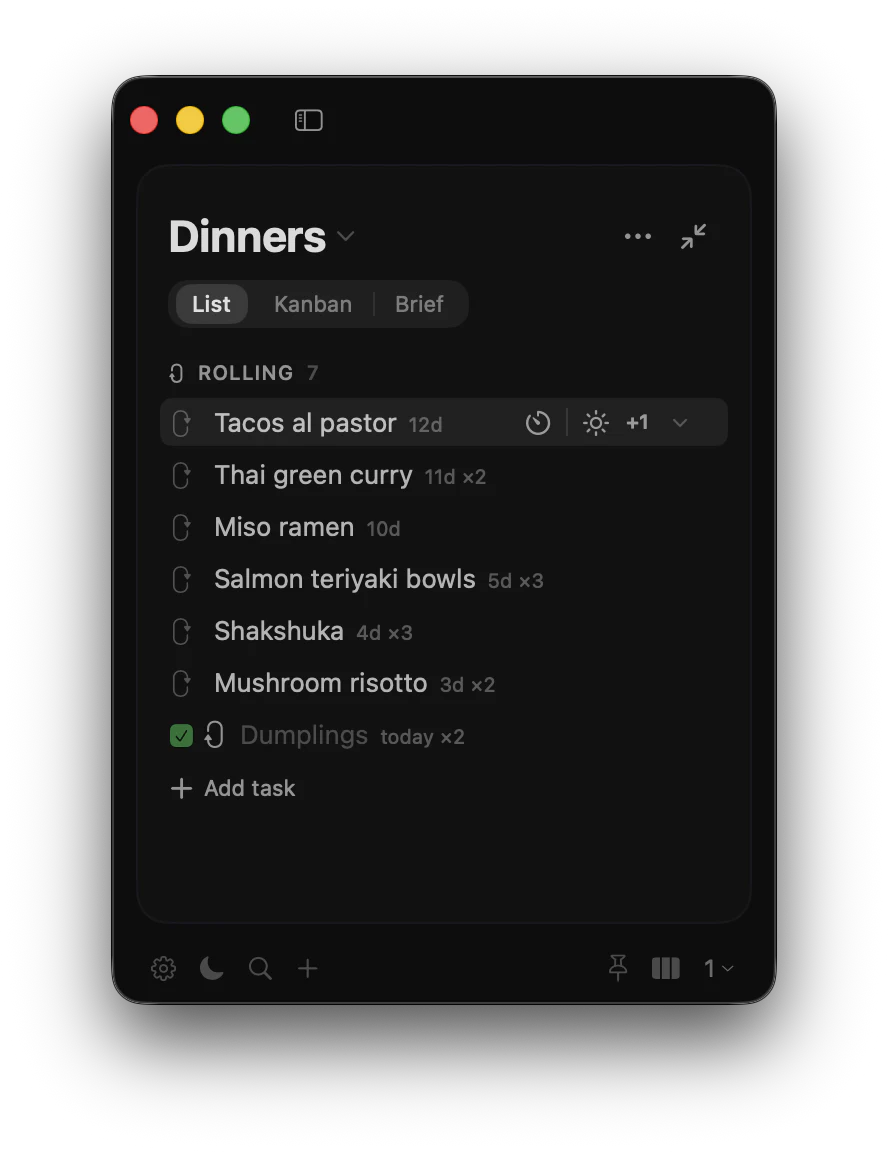
Dark & light

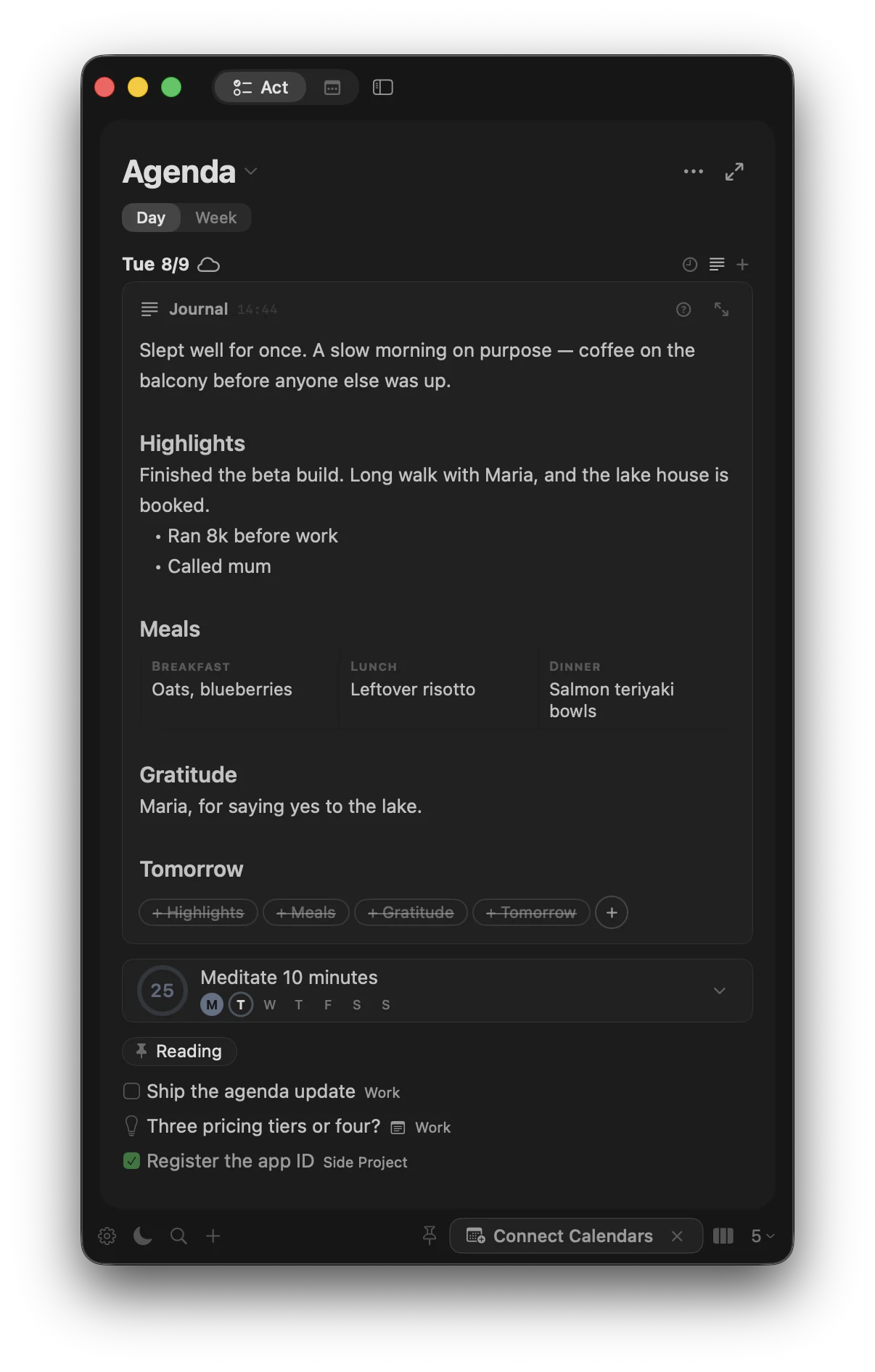
Follow the system, or pick a mode per device.

WAYS TO USE MATTERS

Real systems, not generic tasks

Matters makes the most sense when a list is more than a list: a rotation, a long plan, a shared responsibility, or a part of life you want to keep honest.

01

Keep fourteen dinners in a rolling list. Cook the top one, complete it, and it sinks to the bottom while the meal it has been longest since rises back up.

Dinner rotation · Rolling tasks
02

Plan Japan for April 2027, a marathon build in 2028, and a sabbatical in 2029 without exiling the future to a spreadsheet.

Life horizons · Month and year planning
03

Mark the areas of life and projects that matter most — Marathon, Spanish, a side project — as focus lists. More than a high-priority tag: any day you leave one unplanned, the agenda gives a quiet but unmissable nudge — so what matters never slips, and you plan the day around it.

Focus lists · A daily nudge where you plan
04

Run a project from one column: tasks in List, progress in Kanban, and use the standing Brief for meetings, decisions, questions, and risks.

Project operating page · List · Kanban · Brief
05

Give each area of life its own block of time — deep work, a side project, family — so none of them quietly gets neglected. When the block arrives there's nothing to decide: you just work that part of life for as long as it's set aside.

Time-blocked areas · Blocks and routines

WHY MATTERS EXISTS

I didn't build Matters because I wanted another productivity app. I built it because nothing could hold a whole life at once — so for years I ran two apps and a spreadsheet just to keep one.

I'd tried every serious task app and hit the same ceiling each time. So I did what deliberate planners do — ran several at once, with a spreadsheet underneath for the long horizons none of them could hold: a trip I could only pin to “sometime in 2027.” Other things just fell through the gaps — dinners that should rotate through the month instead of vanishing the moment I cooked one, the reasoning behind a decision I'd want to reread in a year. A pile of tools, each holding one corner of my life.

The real problem was never a missing feature — any app could add the next thing I wanted. It was that nothing held it together. Tasks in one app, events in the calendar, horizons in a spreadsheet, habits in whatever app I was trying that month — and the stitching between them was the tax I paid every morning. I was spending attention keeping the system intact instead of on the work it was meant to protect.

What I wanted was the opposite. The day as one sequence — a task, a habit, a meeting, back to tasks — not parked in separate trackers. The areas I kept neglecting blocked out by the hour, so when the time came I'd just take the top thing and work. The lists that matter most not just flagged important and then forgotten, but speaking up on their own on a day I'd let them slip.

And planning years out shouldn't mean exile to a spreadsheet. A plan should be allowed to stay vague — “Japan, sometime in 2027” — and sharpen only as it nears. I wanted to zoom from this morning to 2029, and to keep my week and two live projects open side by side, instead of switching between views all day.

So I built it, and I've run every day and the next few years through it since. If you've ever bent a todo app into a life system and felt it bend back, this one bends the other way — shaped to your life, not asking your life to be shaped to it. Built by someone who needed that first.

Sina Keshavarzi, Stockholm
PRIVACY BY DESIGN

Your data stays on your devices

Matters has no backend that holds your todos. Sync happens through your iCloud account, end-to-end. We can't read your tasks, because we never see them.

End-to-end · tap to lock again
  • No accounts to manage

    You don't sign up for Matters. The only credential involved is the Apple ID you already use — the same place your photos and notes sync.

  • Selective sharing

    Share a single list with a partner or collaborator — the weekly dinners, the house projects — straight from Apple's share sheet, the same one you already use. They see that list; the rest stays yours.
  • Works offline by default

    The whole app runs locally. Lose connectivity — on a plane, in a tunnel — and Matters keeps working, reconciling when you're back.

Now on the App Store

Focus on what matters.

Matters is here — one app for iPhone and Mac. Download it from the App Store today.

One app for iPhone & Mac No accounts